
Hello folks! If your Android phone’s screen just stopped rotating one day, you’re not imagining it. A bunch of people running Android 16 have noticed the same thing this year: you flip the phone sideways, wait for that “OK, we’re going to rotate now” feeling, and nothing happens. The screen just sits there in portrait mode, stubborn as ever.
I ran into this myself a few weeks ago on a Pixel after an update, and it turned out to be a mix of a sensor glitch and one setting I didn’t even know existed. Here’s everything worth trying, from the thirty-second fix to the ones you only need if your phone is being truly difficult.
Quick answer: Most auto-rotate problems on Android 16 come down to the feature being switched off in Quick Settings, a per-app override you forgot about, or a sensor that needs recalibrating. Pull down your notification shade and check the Auto-rotate tile first. If it’s already on, restart your phone, then check Settings > Display > Auto-rotate for any app-specific exceptions. That fixes it for most people in under two minutes.
Step 1: Check the Quick Settings tile first
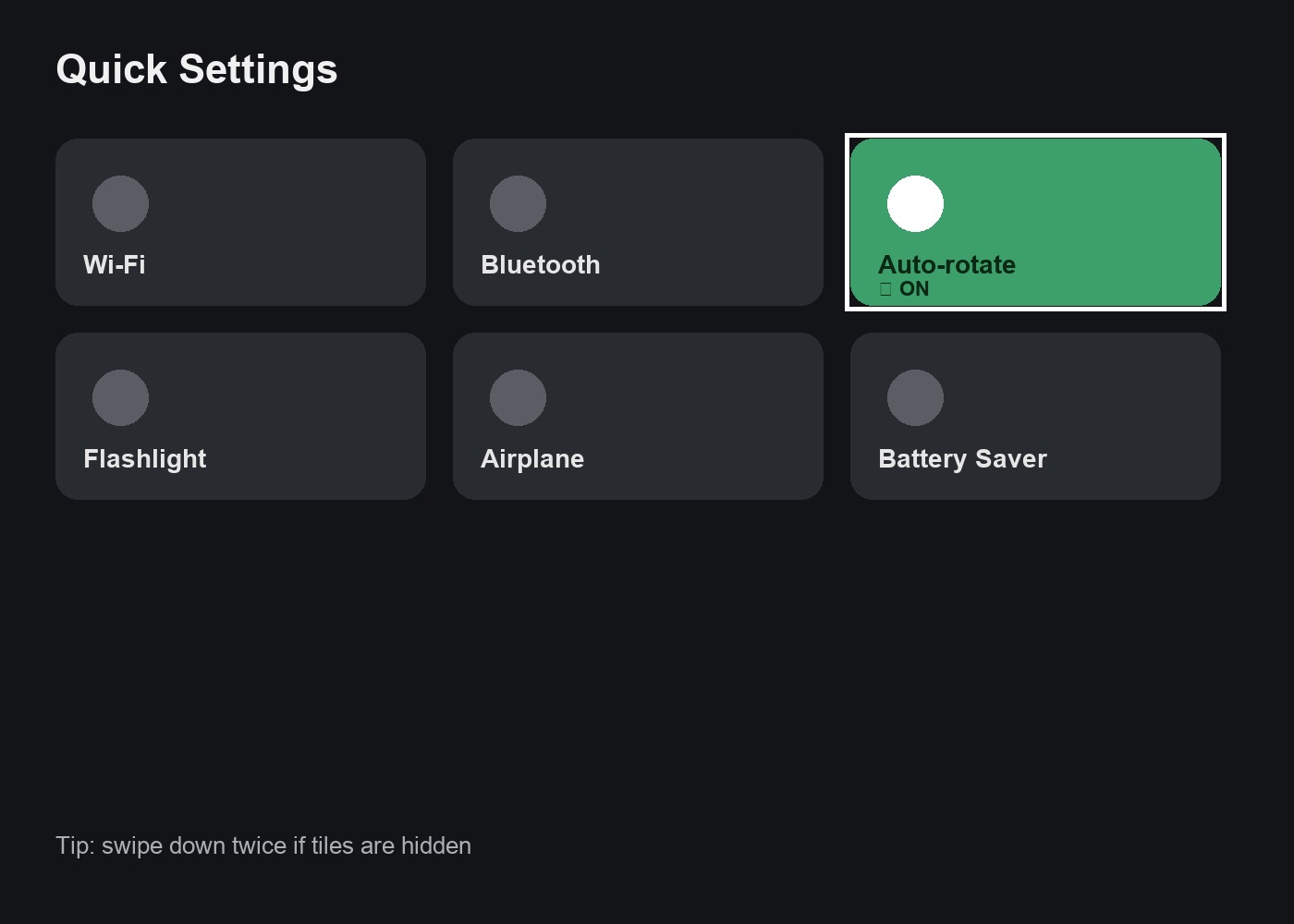
This sounds obvious, but it’s the number one cause. Swipe down from the top of your screen (twice, if you only see a few icons on the first swipe) to open Quick Settings. Look for a tile labeled Auto-rotate or Portrait. If it says “Portrait,” that means rotation is locked and tapping it will switch it back to Auto-rotate.
On some phones, especially Samsung and Xiaomi devices, this tile can get bumped out of the visible row during a software update and end up hidden in the “edit tiles” menu. Tap the pencil or edit icon at the bottom of Quick Settings and drag Auto-rotate back into view if you don’t see it.
Step 2: Confirm it’s not a per-app setting
Android has quietly added more per-app display controls over the last couple of releases, and it trips people up constantly. Go to Settings > Display and look for Auto-rotate screen. Tap it, and on some versions you’ll see a list of apps with their own rotation lock. It’s entirely possible your global setting is fine, but the one app you keep testing this in (usually a camera or reading app) has its own override turned on.
If you don’t see a per-app list on your phone, don’t worry, not every manufacturer includes it. Just move on to the next step.
Step 3: Restart your phone
I know, I know. But auto-rotate depends on a background service reading data from your accelerometer and gyroscope, and that service can quietly crash without any error message. A restart forces it to reload cleanly. This alone fixed it for me the first time it happened, and it’s the single most reported fix in the Pixel community threads about this exact bug.
Step 4: Recalibrate your motion sensors
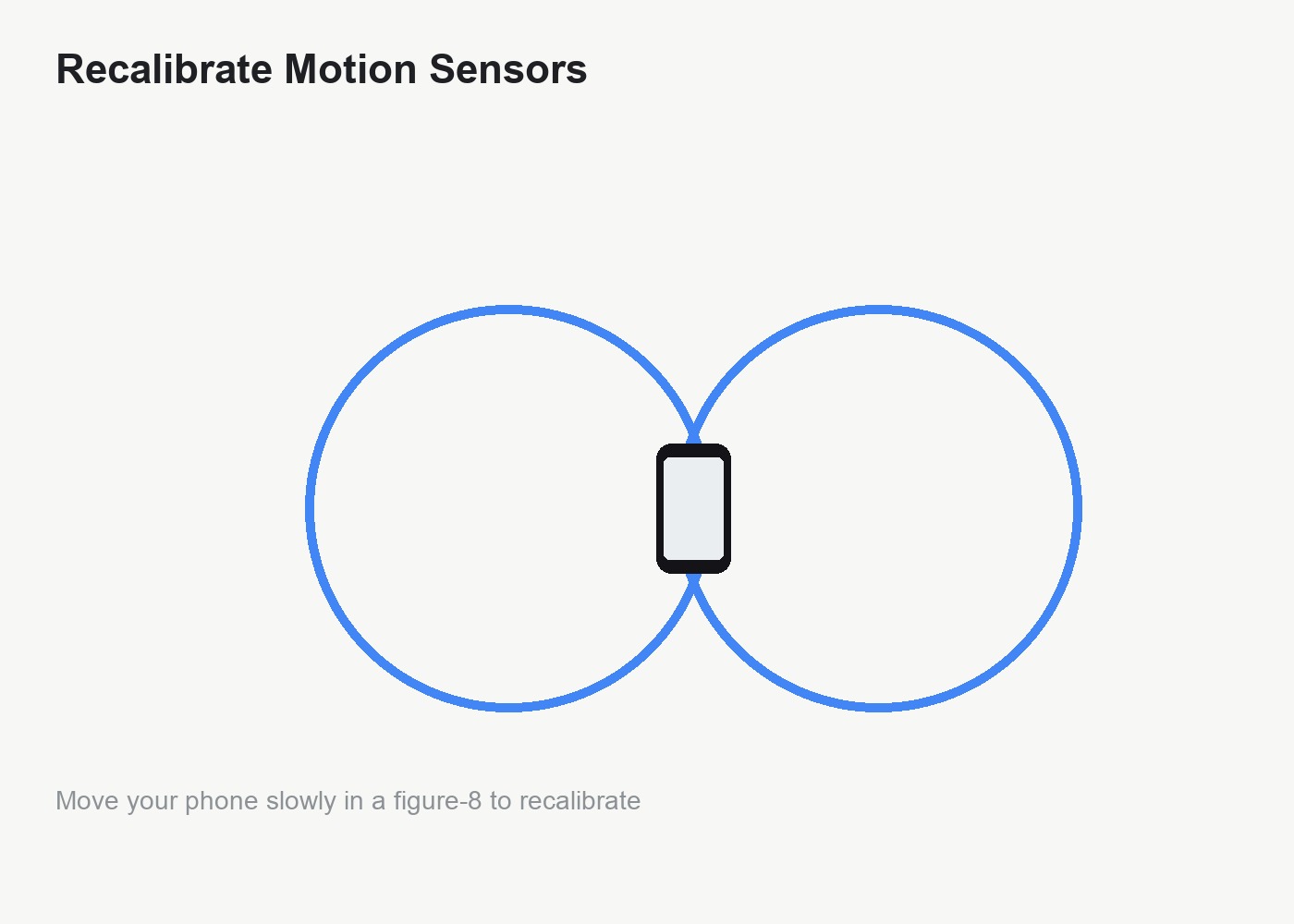
If restarting didn’t help, your accelerometer might just need a nudge. Open your phone’s compass or a free “sensor test” app from the Play Store, then move your phone slowly in a figure-eight motion in the air a few times. This recalibrates the magnetometer and accelerometer together, and it’s a real fix, not a superstition, since these sensors can drift out of alignment over time or after a drop.
Step 5: Rule out a case or screen protector
A thick case, especially one with a flip cover or a kickstand, can sometimes press against the edge of the screen or block a sensor housed near the top bezel. If the problem started right after you put on a new case, take it off for a few minutes and test rotation again. It’s a long shot, but it costs nothing to check.
Step 6: Boot into Safe Mode to check for app conflicts
If you installed a new app right before this started, it might be interfering with system sensors (some screen filter, blue light, or gaming performance apps do this). Press and hold the power button, then long-press “Power off” until you’re prompted to reboot into Safe Mode. In Safe Mode, only pre-installed apps run. Test auto-rotate there. If it works fine, one of your third-party apps is the culprit, and you’ll need to uninstall recent ones one at a time to find it.
Step 7: Check for a pending software update
Go to Settings > System > System update and check for anything waiting. Google and most manufacturers have pushed quiet bug-fix patches addressing exactly this kind of sensor glitch after major Android 16 rollouts, so if you’re a version behind, updating might solve it outright.
Tips and troubleshooting
- If auto-rotate works in some apps but not others, it’s almost always the per-app setting from Step 2, not a hardware issue.
- Battery Saver mode disables auto-rotate on some phones automatically to save power. Check if it’s turned on under Settings > Battery.
- If nothing here works and the sensor test app shows wildly inconsistent readings even after calibration, that can point to an actual accelerometer hardware fault, which usually means a repair visit.
FAQ
Why did auto-rotate suddenly stop working after my Android 16 update?
Updates sometimes reset accessibility and display settings, or introduce a temporary bug in the sensor service. A restart combined with checking Quick Settings resolves it for most people.
Does Battery Saver turn off auto-rotate?
On several phone brands, yes. Extreme battery-saving modes disable auto-rotate along with other background features to save power. Check your battery settings if this only started after you enabled a power-saving mode.
Why does auto-rotate work in some apps but not the home screen?
Some launchers lock the home screen in portrait mode by design. Check your launcher’s own settings menu for a separate rotation toggle, since it’s often unrelated to the system-wide setting.
Can a screen protector cause rotation problems?
It’s rare, but a poorly fitted protector can interfere with proximity or light sensors near the top of the screen in some models. If problems started right after applying one, try removing it temporarily to test.
For more background on how Android’s rotation and accessibility settings work together, Google’s own accessibility help page is worth a look. And if you’ve been dealing with other Android 16 quirks, our guide on fixing widgets that reset after a restart covers another common one from this update cycle.
Did any of these steps get your screen rotating again, or is it still stuck? Let me know in the comments what worked (or didn’t) for your phone.