
Hello folks! Woke up, unlocked your phone, and half your home screen is just… gone? If you updated to Android 17 recently and use a work profile (that little briefcase icon on some of your apps), you’re not imagining it. Your Clock, Calendar, Gemini, or Keep widgets can vanish overnight, and it’s got nothing to do with anything you did.
Quick answer: This is a known Android 17 bug that mixes up permissions between your personal and work profiles. Google has confirmed it and a fix is on the way, but until it lands, you can usually bring your widgets back by toggling Battery Saver on and off, pausing and unpausing the affected app, or briefly pausing your work profile. None of these delete your data.
Why Your Widgets Disappeared After Android 17
Android 17 rolled out to Pixel and other phones starting in June 2026, and it didn’t take long for reports to pile up. If your phone has a work profile set up (common if your employer manages your device through Google Workspace or Microsoft Intune), the update seems to confuse which widgets belong to which profile. The result: personal widgets disappear, work widgets disappear, or sometimes both.
Google has acknowledged the bug publicly and said a fix is coming in a future software update. I’ve seen this myself on a Pixel with a work profile turned on for email — my weather widget vanished for two days before I tried the fixes below.
Fix 1: Toggle Battery Saver On, Then Off
This sounds too simple to work, but it’s the fix that’s helped the most people so far. Toggling Battery Saver seems to force Android to redraw your home screen and reload your widgets correctly.
- Open Settings and tap Battery.
- Turn on Battery Saver.
- Wait about 10-15 seconds.
- Turn Battery Saver back off.
- Go back to your home screen and check if the missing widget is back.
If you don’t see it immediately, try locking and unlocking your phone once.
Fix 2: Pause and Unpause the Specific App
If only one or two widgets are missing (say, just Clock or just Calendar), this targeted fix usually works better than a full reboot.
- Go to Settings > Apps > See all apps.
- Find the app whose widget disappeared.
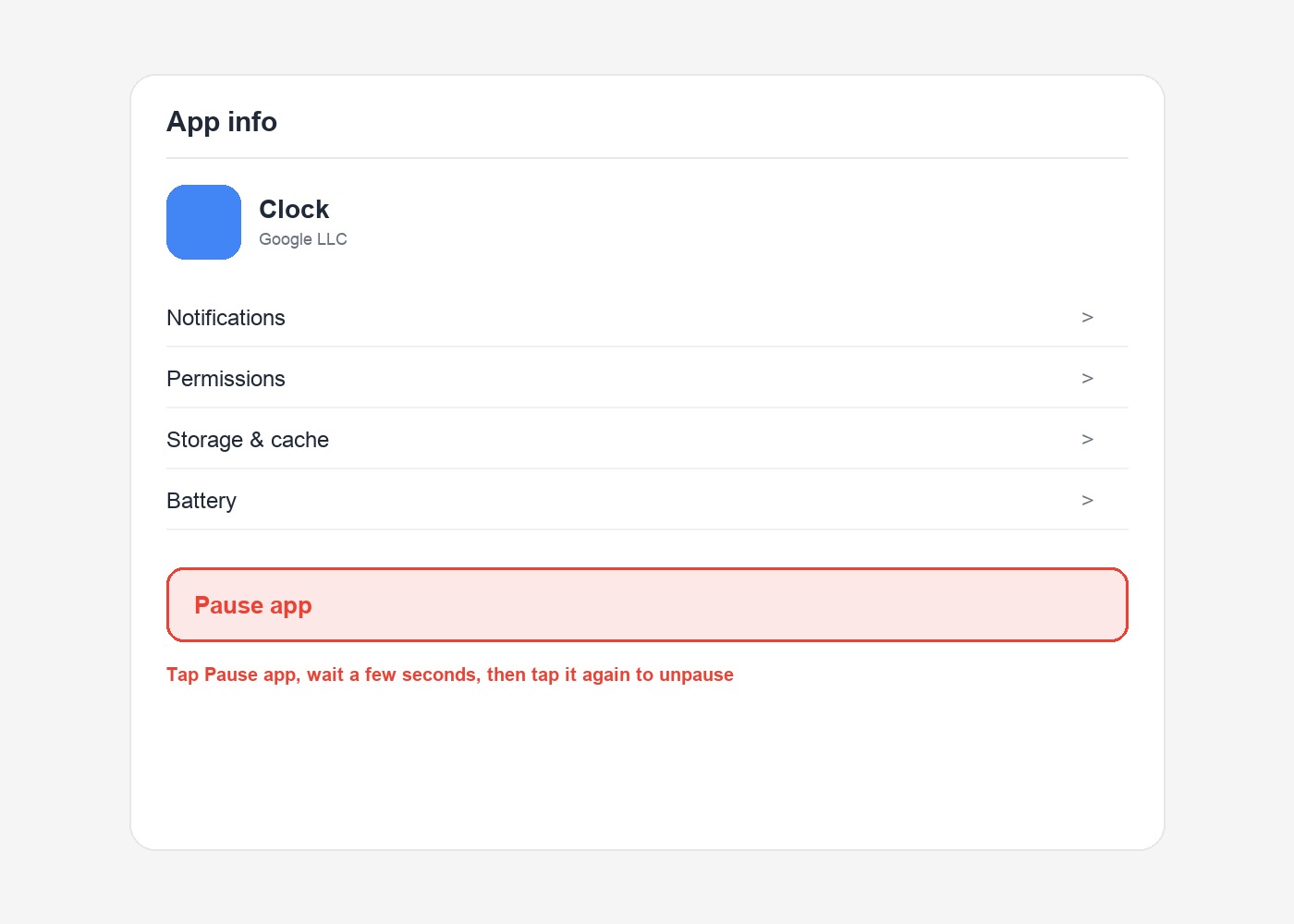
- Tap Pause app (on newer Android versions this option sits near the top of the app’s info page).
- Wait a few seconds, then tap it again to unpause.
- Head back to your home screen and re-add the widget if it doesn’t reappear on its own.
Fix 3: Pause Your Work Profile Temporarily
Since this bug is tied to the work profile system, briefly pausing your work profile can reset whatever got tangled. This does not delete your work apps or their data — it just switches them off for a moment.
- Open Settings and type “work profile” into the search bar at the top.
- Tap the Work profile settings result.
- Turn the toggle off, wait about 30 seconds, then turn it back on.
- Check your home screen for both personal and work widgets.
Only do this if you’re comfortable losing work app access for a minute or two. If your phone is company-owned, it’s worth a quick heads-up to IT before you do it, just in case.
Fix 4: If Your Phone Is Managed by Your Company, Loop In IT
Some organizations manage Android phones through a mobile device management (MDM) tool like Microsoft Intune. If that’s your setup, there’s a policy setting called “Allow widgets from work profile apps.” When it’s set to Enabled, it seems to trigger this bug for some users. Your IT admin can change it to Not configured, which has fixed the issue for a lot of managed-device users without anyone needing to touch individual phones.
This one isn’t something you can flip yourself, so forward this section to whoever manages your device policies.
Fix 5: Check for a Pending System Update
Google said the real fix is coming through a regular software update, so it’s worth checking you’re actually caught up.
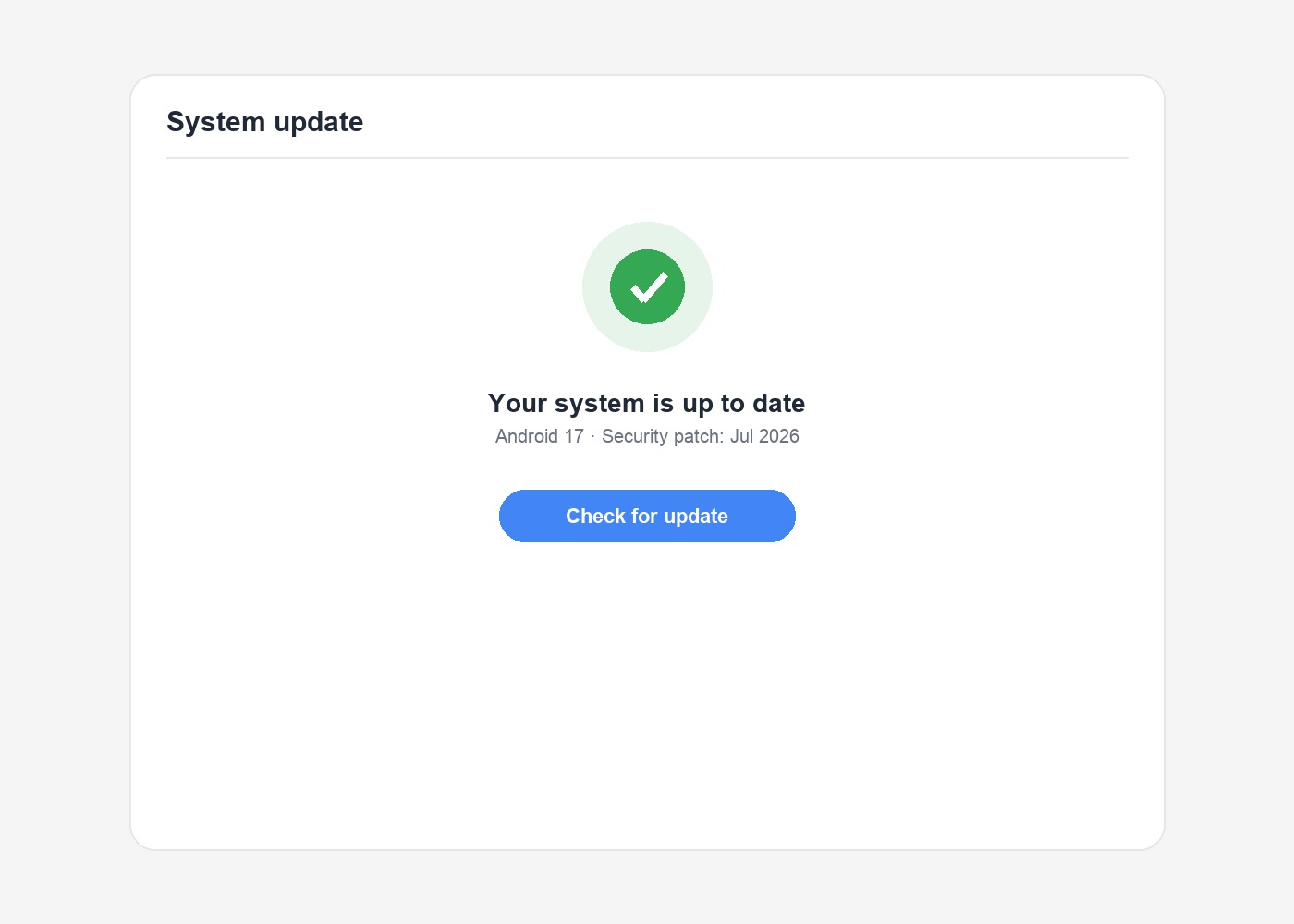
- Go to Settings > System > System update.
- Tap Check for update.
- Install anything available, then restart your phone.
Troubleshooting Tips
- Don’t remove your work profile entirely just to fix this — it’s reversible with the methods above, and removing a work profile can wipe managed app data.
- If widgets keep disappearing every day, try re-adding them after each Fix 1 attempt rather than waiting for them to reappear automatically.
- Restarting the phone (not just the home screen) sometimes finishes the job when Fix 1 alone doesn’t stick.
Frequently Asked Questions
Will pausing my work profile delete my work emails or files?
No. Pausing just switches work apps off temporarily. Your emails, files, and settings stay exactly as they were once you turn it back on.
Is this bug affecting all Android 17 phones, or just Pixels?
Most public reports are from Pixel owners, since Pixels get Android updates first, but the underlying work profile issue is part of Android itself, so other brands running Android 17 with a work profile could see it too.
When will Google release an official fix?
Google hasn’t given an exact date, but has said a fix is planned in an upcoming software update. Checking Settings > System > System update regularly is the best way to know when it’s arrived on your phone.
My widgets came back but disappeared again the next day. What now?
Repeat whichever fix worked the first time. It’s annoying, I know, but it’s a safe temporary workaround until Google’s permanent fix rolls out.
For more background on the bug, Google’s own Android Enterprise work profile policy documentation explains how the widget permission is meant to work, and the Google Support Community thread has hundreds of users comparing notes on what’s helped them. If you’ve dealt with disappearing widgets before, our guide on Android widgets resetting after a restart covers a related (but separate) annoyance worth ruling out too.
Did one of these fixes bring your widgets back, or are you still stuck waiting on Google? Let me know in the comments what worked on your phone.