
Hello folks! Your alarm is blaring, you’re half asleep, and you go to slide the stop button on your Lock Screen… and nothing happens. If you’re running the iOS 27 beta, this isn’t you being groggy. It’s a real bug Apple already knows about.
Quick answer: iOS 27 beta has a known issue where a ringing alarm sometimes won’t stop from the Lock Screen without fully unlocking your phone first. Apple’s own release notes list this as a known issue. Until it’s patched, your fastest workaround is asking Siri to “stop the alarm” or “stop music,” or simply unlocking your phone and dismissing it from there.
Why Your iOS 27 Alarm Won’t Stop
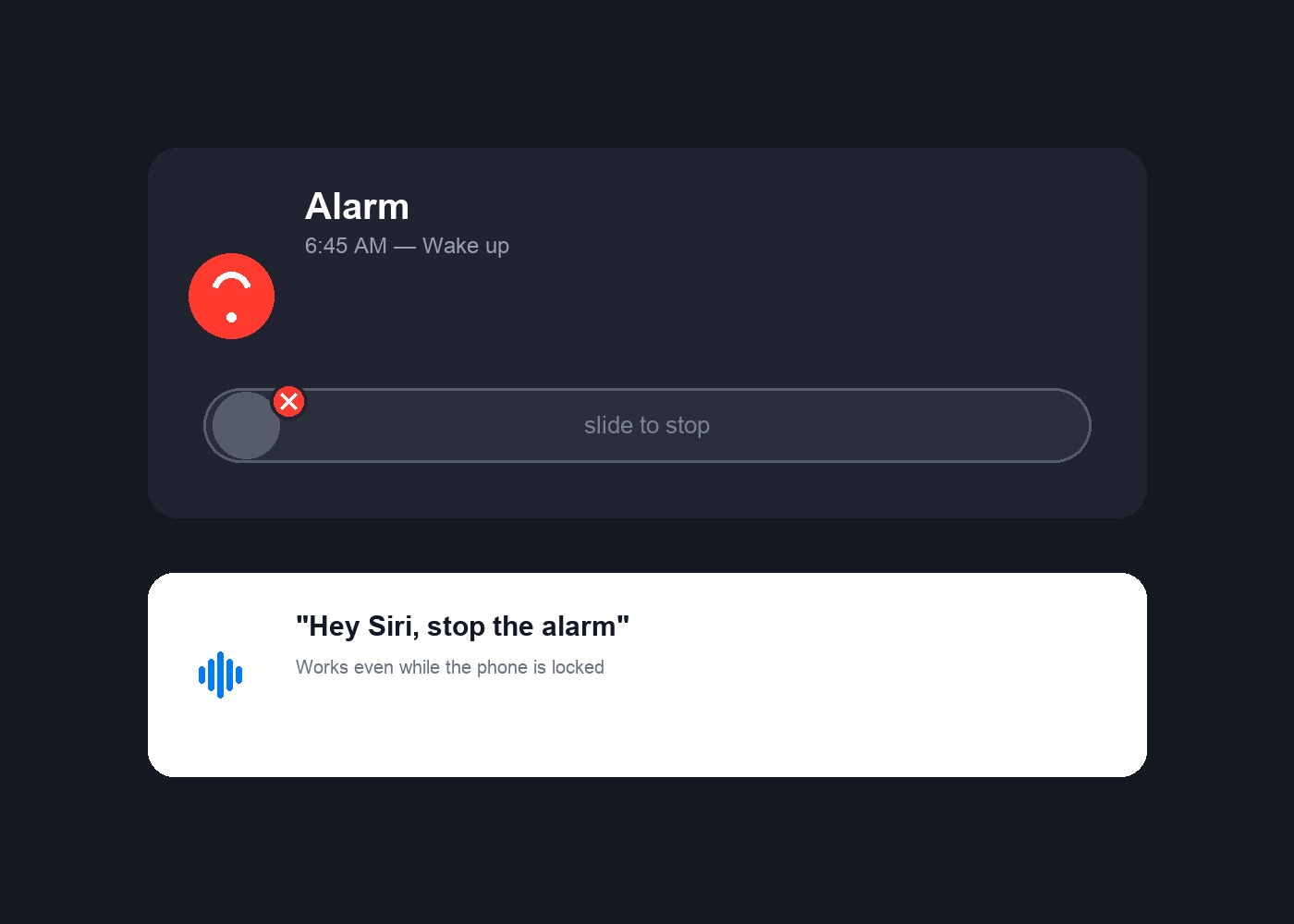
Apple released iOS 27 Beta 4 on July 20, 2026, and the alarm Lock Screen issue has carried over from earlier betas. It’s listed in Apple’s official beta release notes as a known issue, not something wrong with your specific phone. In plain terms: when an alarm goes off, the slide-to-stop control on the Lock Screen sometimes doesn’t respond to touch at all, leaving you stuck listening to it ring.
I hit this myself on my iPhone 16 Pro running the Beta 3 update last week. My alarm kept going and the slider just wouldn’t budge. Talking to Siri is what actually got it to stop.
Fix 1: Ask Siri to Stop It
This is the workaround Apple itself points to, and it’s the fastest one when you’re half asleep.
- Say “Hey Siri, stop the alarm” (or activate Siri by holding the side button if Hey Siri isn’t turned on).
- If that phrase doesn’t register, try “Hey Siri, stop music” instead — some users have had better luck with this exact wording.
- Siri may ask you to confirm. Just say “Yes.”
This works even while your phone is locked, since Siri doesn’t need the slider to respond.
Fix 2: Unlock Your Phone First
If Siri isn’t cooperating (or you’ve got Siri turned off), unlocking the phone fully tends to bypass the bug entirely.
- Use Face ID or enter your passcode to unlock the iPhone as normal.
- Once you’re on the Home Screen, open the alarm banner or go to the Clock app directly.
- Tap Stop from inside the app.
It’s an extra step you shouldn’t have to take, but it’s reliable while Apple works on a real fix.
Fix 3: Force Restart if Nothing Responds
On the rare morning where even Siri seems unresponsive, a force restart clears whatever’s stuck.
- Press and quickly release Volume Up.
- Press and quickly release Volume Down.
- Press and hold the side button until the Apple logo appears.
Your alarm will stop as the phone reboots, though obviously save this for when you’re actually stuck, not as your everyday fix.
Fix 4: Check for a Newer Beta
Apple ships new beta builds every couple of weeks during testing, and known issues from earlier betas often get quietly resolved.
- Go to Settings > General > Software Update.
- Tap Beta Updates to confirm you’re enrolled in the iOS 27 beta track.
- Back on the Software Update screen, tap Check for updates and install anything newer than Beta 4.
Fix 5: Make Alarms Easier to Dismiss Overall
This won’t fix the underlying bug, but it can reduce how often you get stuck fighting the slider in the first place.
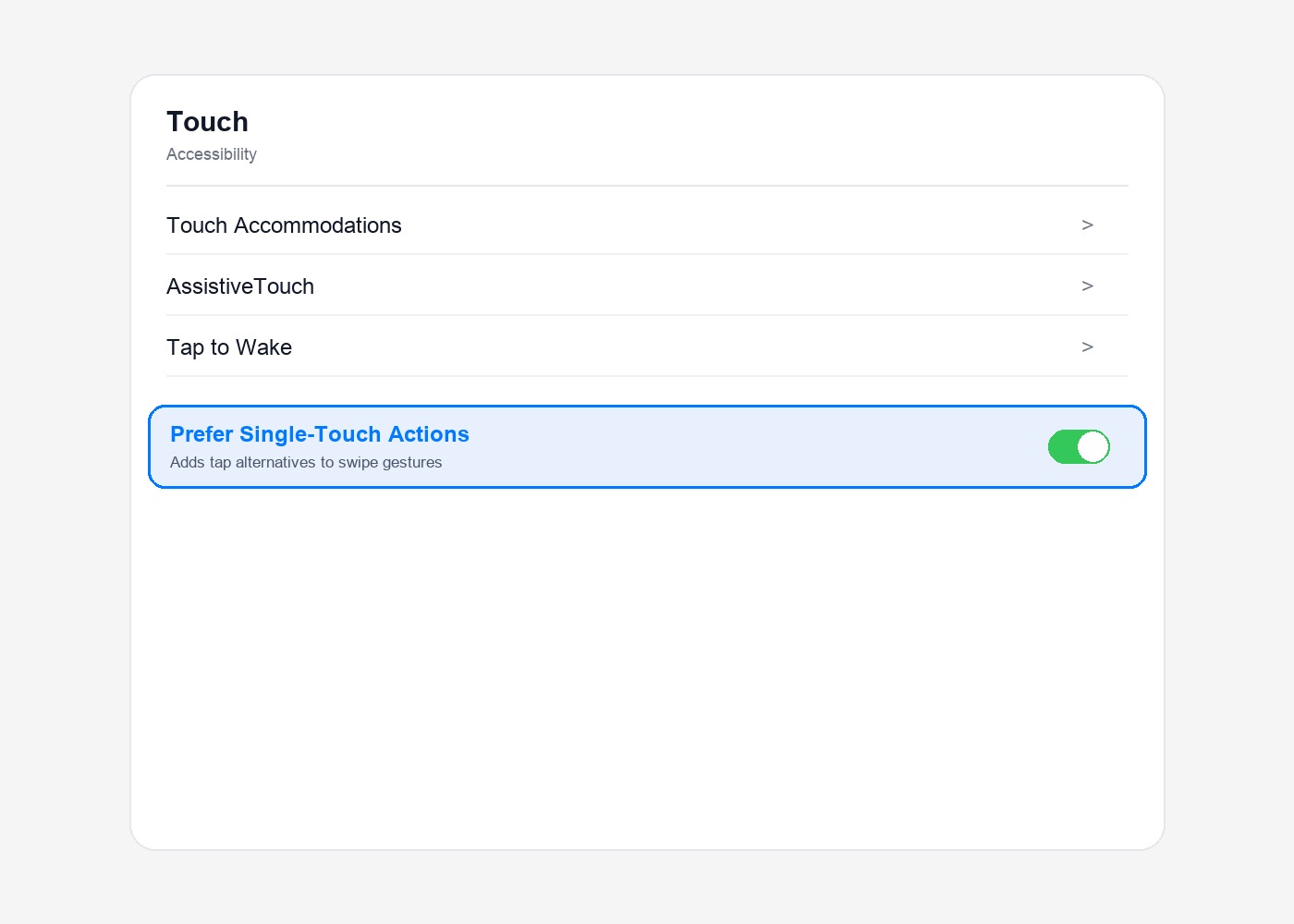
- Go to Settings > Accessibility > Touch.
- Scroll down and turn on Prefer Single-Touch Actions.
- This brings back a simple tap-to-stop button on some alarm screens instead of requiring the slide gesture.
Troubleshooting Tips
- Snoozing usually still works with a normal tap even when the full stop slider is broken, so snooze and deal with it once you’re properly awake if you’re in a rush.
- If mornings are too important to risk, it might be worth holding off on the iOS 27 beta on your main phone until this is confirmed fixed in a later build.
- Keep a backup alarm method (a bedside clock, smartwatch, or second device) while you’re testing beta software — this goes for any beta, not just this bug.
Frequently Asked Questions
Is this bug in the stable iOS 26, or only the iOS 27 beta?
It’s specific to the iOS 27 beta. Apple lists it in the beta release notes as a known issue, and it’s expected to be resolved before the public iOS 27 release later this year.
What if I don’t have “Hey Siri” turned on?
You can still trigger Siri by pressing and holding the side button, then saying “stop the alarm” once Siri appears.
Does this affect the Snooze button too?
Mostly no. Snoozing has generally kept working with a simple tap, it’s the full Stop action on the Lock Screen that gets stuck.
When will Apple actually fix this?
There’s no announced date. Apple typically resolves known Lock Screen and alarm bugs within a beta cycle or two, so checking for updates regularly is your best bet.
For the full list of what Apple has officially acknowledged, check the iOS & iPadOS 27 beta release notes straight from Apple, and the MacRumors Beta 4 bug tracker thread where testers compare notes build by build. If you’re also dealing with iPhone battery drain on this update, our guide on fixing iPhone battery drain covers a lot of the same settings worth double-checking.
Has the Siri workaround been getting you out of bed on time, or are you sticking with a backup alarm until Apple sorts this out?