
Hello folks! There’s nothing more annoying than typing a sentence on your iPad and watching the keyboard just… stop. No warning, no error message, it just drops the connection mid-word and you’re left tapping the on-screen keyboard again like it’s 2015. If your Bluetooth keyboard keeps disconnecting from your iPad, you’re dealing with one of the most common iPadOS 26 complaints right now, and the good news is it’s almost always fixable without buying anything new.
I went through this exact thing with a Magic Keyboard Folio a couple of weeks ago. It would connect fine, work for ten minutes, then just vanish from the connected devices list. Here’s what actually fixed it, plus everything else worth trying if the first fix doesn’t stick.
Quick answer: Most Bluetooth keyboard disconnects on iPad come down to a stale pairing, low keyboard battery, or Wi-Fi/Bluetooth radio interference. Forget the device in Settings > Bluetooth and re-pair it, charge the keyboard fully, and turn Wi-Fi off for a quick test. That combination clears it up for the vast majority of people.
Step 1: Forget the keyboard and re-pair it
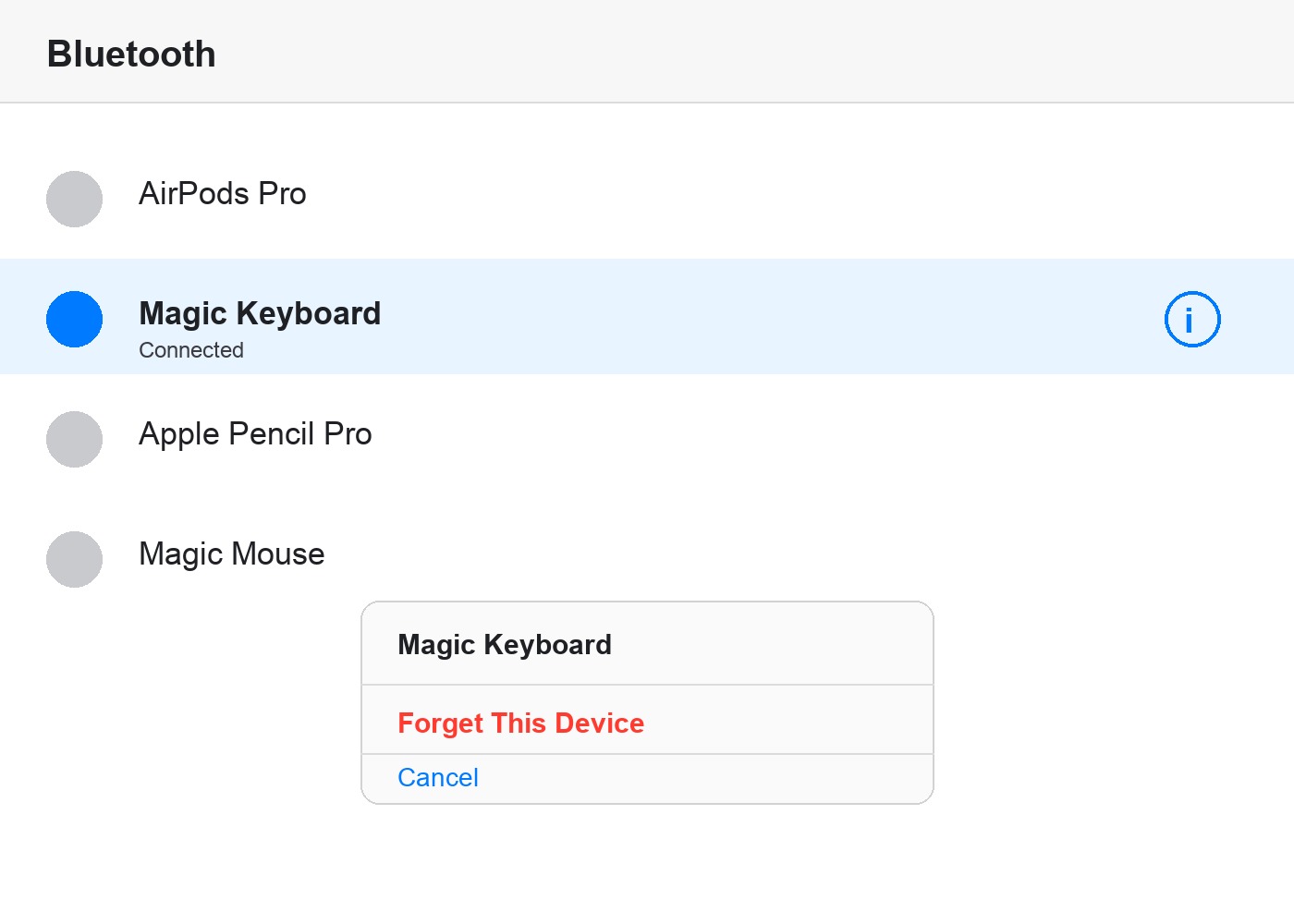
This is the single most effective fix, and it takes under a minute. Open Settings > Bluetooth, find your keyboard under My Devices, tap the small “i” icon next to it, then tap Forget This Device and confirm. Now put the keyboard back into pairing mode (check your keyboard’s manual, but it’s usually a button combo or a switch), go back to Bluetooth settings, and tap the keyboard’s name under Other Devices to pair it fresh.
A stale pairing profile is by far the most common cause here. Something about the connection handshake gets corrupted over time, and iPadOS just quietly keeps trying to use the broken profile instead of asking you to fix it.
Step 2: Check the keyboard’s battery
A keyboard running low on battery doesn’t always show a clear warning before it starts dropping connections. If your keyboard has a removable battery or a charging port, plug it in or swap batteries and let it charge for at least 30 minutes before testing again. This sounds too simple to be the answer, but I’ve seen it fix “random” disconnects more than once.
Step 3: Rule out Bluetooth and Wi-Fi interference
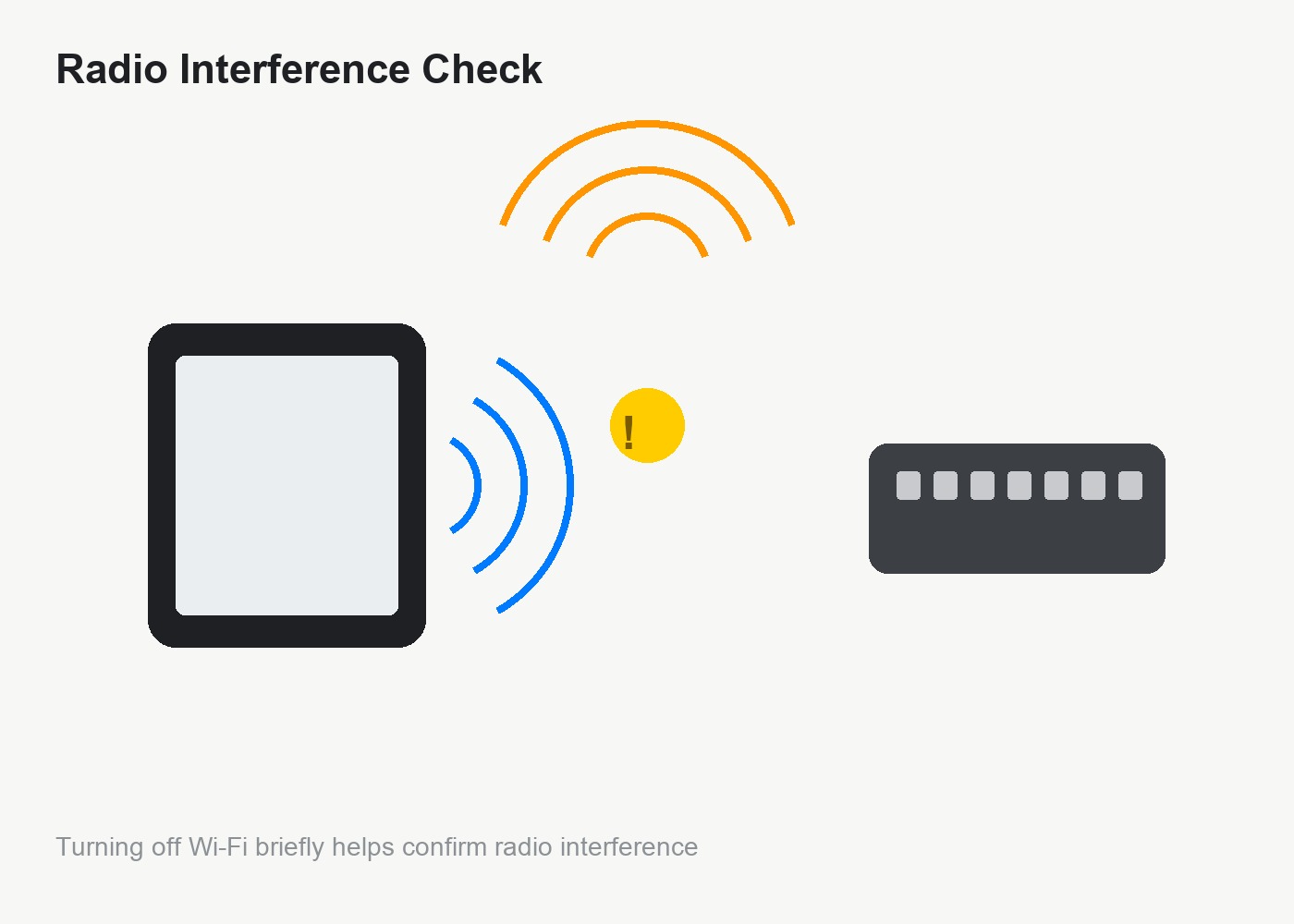
Bluetooth and Wi-Fi share the same 2.4GHz radio band, and on some iPads they can step on each other when a lot of devices are connected at once (AirPods, a mouse, a nearby smart speaker). Turn Wi-Fi off for a few minutes and use just the keyboard. If the disconnects stop, you’re dealing with radio interference, not a broken keyboard. Try moving your router, or simply keep the keyboard closer to the iPad than other Bluetooth accessories.
Step 4: Update iPadOS
Go to Settings > General > Software Update and install anything pending. Apple has quietly patched several Bluetooth stability issues across recent iPadOS 26 point releases, and if you’re even one version behind, that alone can be the whole problem.
Step 5: Reset network settings (last resort)
If nothing above works, go to Settings > General > Transfer or Reset iPad > Reset > Reset Network Settings. This wipes all saved Wi-Fi passwords and Bluetooth pairings, so you’ll need to re-enter your Wi-Fi password and re-pair every accessory afterward. It’s a bit of a hassle, but it clears out any corrupted network or Bluetooth stack data that a simple forget-and-repair didn’t catch.
Tips and troubleshooting
- If only one specific app seems to lose keyboard input (while the keyboard stays connected in Bluetooth settings), that’s an app bug, not a connection issue. Try force-closing and reopening that app.
- Keep your keyboard’s firmware updated if the manufacturer provides an update app. Third-party keyboards especially can have their own Bluetooth bugs unrelated to iPadOS.
- A thick case or a metal desk stand between the keyboard and iPad can weaken the signal enough to cause drops. Keep a clear line of sight where you can.
FAQ
Why does my iPad keyboard disconnect only after a while, not right away?
This pattern usually points to battery drain or a background app draining Bluetooth resources, rather than a pairing problem. Check the keyboard’s charge level first.
Does forgetting a Bluetooth device delete anything else?
No. Forgetting a device only removes that one Bluetooth pairing. Your files, settings, and other connected accessories stay untouched.
Will Reset Network Settings delete my photos or apps?
No, it only resets Wi-Fi, Bluetooth, VPN, and cellular settings. Your apps, photos, and personal data are not affected, but you will need to re-enter Wi-Fi passwords.
Can a Bluetooth mouse cause the same disconnect issue as a keyboard?
Yes. The same steps here apply to a Bluetooth mouse or trackpad, since they use the same pairing and radio system on iPad.
For Apple’s own accessory pairing steps, see the official Connect Bluetooth accessories to iPad guide. And if Apple Pencil has been giving you trouble too, our post on fixing Apple Pencil connection issues on iPadOS 26 covers that separately.
Did re-pairing fix your keyboard, or is it still dropping out? Tell me what’s happening with your setup in the comments.
Featured photo: “IPad with Magic Keyboard” by ajay_suresh, licensed under CC BY 2.0.