
Hello folks! If your Apple Pencil suddenly stopped talking to your iPad after the iPadOS 26 update, you’re not imagining it. A bunch of readers wrote in this week with the same story: the pencil worked fine one day, then started dropping connection, refusing to pair, or disconnecting the second they lifted it off the side of the iPad. I ran into a milder version of this myself on my iPad Air a few weeks back, and it turned out to be something dumb and fixable. Let’s go through the real causes, one at a time.
Step 1: Restart your iPad with the pencil attached
This sounds too simple to work, but it’s the fix that clears up the issue for a lot of people. Snap your Apple Pencil onto the magnetic edge of the iPad, then force restart the iPad (press and quickly release Volume Up, press and quickly release Volume Down, then hold the top button until you see the Apple logo). Keep the pencil attached the whole time. This forces iPadOS to re-scan the Bluetooth and charging connection from scratch instead of limping along on a stale one.
Step 2: Toggle Bluetooth off and back on
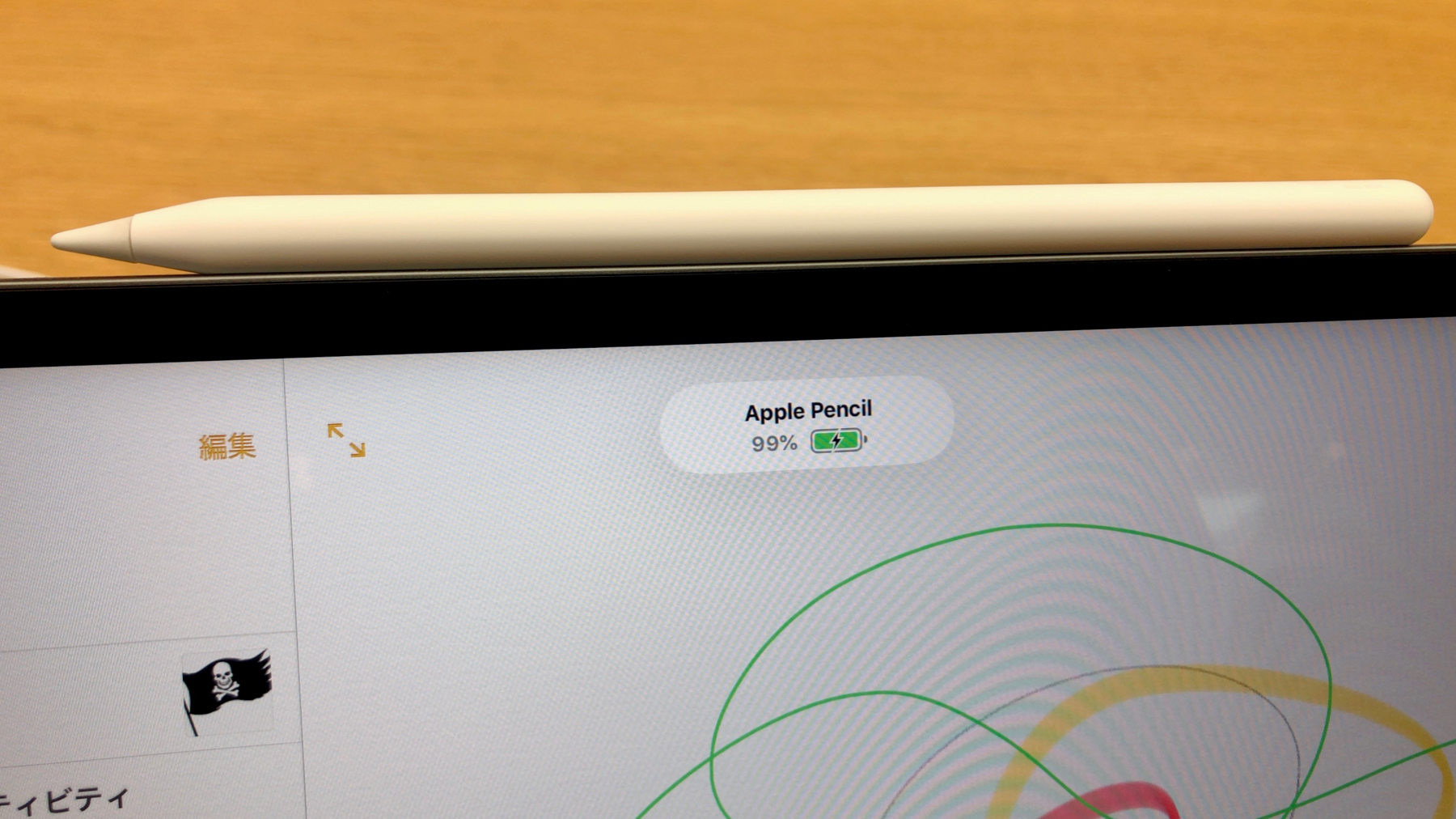
Go to Settings > Bluetooth and flip the switch off. Wait about ten seconds — don’t rush this part — then turn it back on. Snap the pencil back onto the iPad and watch for the little popup that shows the battery level. If it doesn’t show up within 15 seconds or so, move to the next step.
Step 3: Forget the pencil and pair it again
Still in Settings > Bluetooth, look for your Apple Pencil in the device list (it might show as “Apple Pencil” or a serial number). Tap the small “i” icon next to it and choose Forget This Device. Then take the pencil off the iPad completely, wait a few seconds, and reattach it. You should see a “Pair” button pop up on screen — tap it and give the pencil a minute to reconnect properly.
Step 4: Check whether your case is the problem
This one catches a lot of people off guard. If you’re using a third-party case, especially a folio or a “drop-proof” style case, take the iPad completely out of it and test the pencil again. Some cases sit just a millimeter too thick along the edge, which is enough to stop the wireless charging coils inside the pencil and iPad from lining up. The pencil still snaps on magnetically, so it looks connected, but it can’t actually charge or pair.
If the pencil works fine with the case off but drops the second you put the case back on, that’s your answer. You don’t need to throw the case out — some people trim the edge slightly or switch to an Apple-certified case with a properly cut charging rail along the side.
Step 5: Let the pencil update its firmware
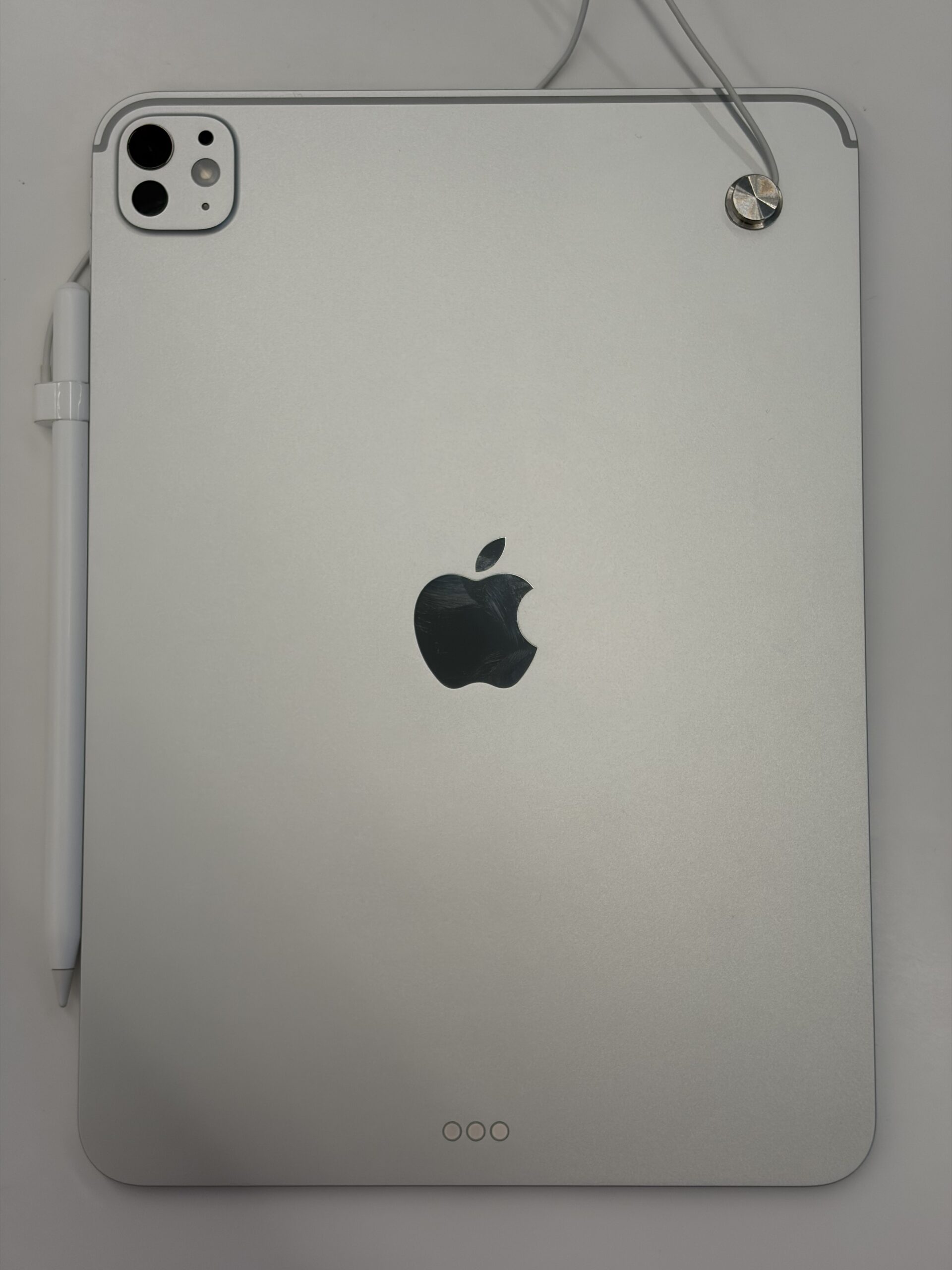
Apple Pencil (2nd generation) and Apple Pencil Pro run their own firmware, separate from iPadOS. After a big software update like iPadOS 26, the pencil sometimes needs its own firmware update to match. You can’t trigger this manually — it happens automatically while the pencil is attached and charging on the iPad, with the iPad connected to Wi-Fi. Leave the two attached and idle for 20 to 30 minutes and check again. It’s slow, but it clears up plenty of pairing weirdness that nothing else fixes.
Step 6: Try pairing with a different iPad
If none of the above worked, borrow a compatible iPad from a friend or check a demo unit at an Apple Store and try pairing your pencil there. If it pairs fine on a different iPad, the problem is specific to your iPad’s Bluetooth or charging hardware, not the pencil. If it also fails on a second iPad, the pencil itself is likely the issue, and it’s time to look at a warranty replacement or repair.
Tips and troubleshooting
- Wipe the magnetic edge of the iPad and the flat side of the pencil with a dry microfiber cloth — dust and pocket lint in that gap causes more connection issues than people expect.
- If you use a screen protector, make sure it isn’t wrapping around the edge where the pencil attaches; that alone can throw off the alignment.
- Check Settings > General > About to confirm your iPad is fully updated to the latest iPadOS 26 point release — Apple has quietly patched a few pencil-pairing bugs in point updates.
- If your pencil charges but the tap and squeeze gestures stop responding, that’s usually a separate software glitch — a restart of just the iPad (pencil detached this time) tends to fix it.
Frequently asked questions
Why does my Apple Pencil disconnect right after I lift it off the iPad?
This almost always points to a case interference problem or a weak magnetic connection. Test with the case removed first — if it holds a steady connection off the charging edge, the case is too thick at that spot.
Do I need to update my Apple Pencil’s firmware manually?
No. Pencil firmware updates happen automatically while it’s attached and charging on an iPad that’s connected to Wi-Fi. There’s no menu option to force it — just leave it attached for a while.
Why does my Apple Pencil show a battery icon but not respond to touch?
That’s typically a software hiccup rather than a hardware or pairing problem. A quick restart of the iPad, with the pencil detached, usually gets the gestures working again.
Is it safe to keep using a case that causes pencil disconnects?
Yes, it won’t damage the iPad or pencil. It’s just inconvenient. If you rely on the pencil daily, switching to a case with a proper cutout along the charging edge saves a lot of frustration.
If you’ve hit this after the iPadOS 26 update, try the Bluetooth toggle and the case test first — those two catch most cases. Did one of these fixes get your pencil working again, or are you still stuck? Let me know in the comments.
Sources: Apple Support – If you can’t pair Apple Pencil with your iPad, Apple Support – How to connect and pair your Apple Pencil.
Also worth reading: How to Fix Stage Manager Not Working in iPadOS 26 and iPad Wi-Fi Not Working After iPadOS 26 Update? Try This.