
Hello folks! If you updated to iPadOS 26 and suddenly your iPad says it’s almost full even though you barely added anything, you’re not losing your mind. A lot of people are seeing a huge chunk of their storage eaten up by something labeled “System Data,” and it doesn’t budge no matter how many photos or apps they delete. I hit this on my own 128GB iPad Air last week and it took a bit of digging to actually shrink it back down.
Quick answer: Go to Settings > General > iPad Storage and wait for it to fully calculate. Delete any already-downloaded software update sitting in storage, turn off automatic downloads for updates temporarily, clear Safari’s cache, and offload apps you don’t use daily. Restart the iPad afterward — System Data often drops noticeably once the device has a chance to clean up temporary files on its own.
Why System Data Ballooned After the iPadOS 26 Update
“System Data” isn’t one file, it’s a catch-all bucket: cached app data, Siri voice files, downloaded (but not yet installed) updates, temporary files from the update process itself, and Safari’s cache all get lumped in there. iPadOS 26 also pre-downloads and stages update files more aggressively than older versions, and on iPads with 64GB or 128GB, that staged update can eat several gigabytes on its own before you’ve even installed anything.
The frustrating part is that Apple’s own storage breakdown screen doesn’t show you exactly what’s inside System Data, so you’re stuck troubleshooting somewhat blind. The steps below hit the usual suspects in order, starting with the easiest wins.
Step 1: Check Your Actual Storage Breakdown
- Open Settings.
- Tap General, then tap iPad Storage.
- Wait 30-60 seconds. The bar at the top needs time to fully calculate before the numbers are accurate.
You’ll see a colored bar broken into Apps, Photos, Media, and so on. Whatever isn’t accounted for in that colored breakdown is roughly your System Data. If it’s showing 10GB or more on a 64GB or 128GB iPad, the steps below should bring it down.
Step 2: Remove a Stuck or Downloaded Update
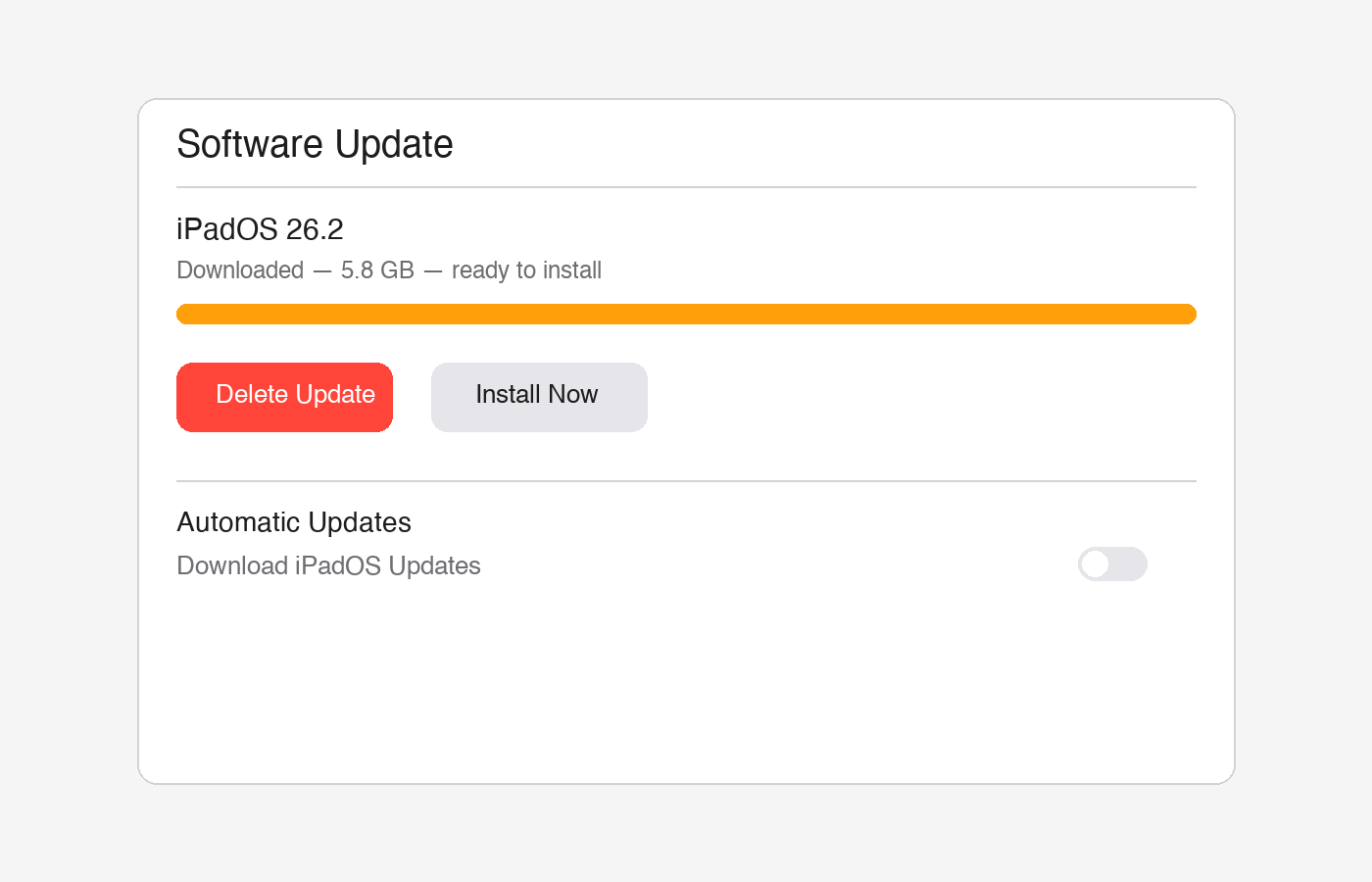
This is the single biggest fix for most people. If iPadOS already downloaded an update in the background, it can sit there taking up multiple gigabytes.
- Go to Settings > General > Software Update.
- If you see a downloaded update waiting to install, tap it and choose to delete or defer it (or just go ahead and install it if you were planning to anyway).
- Restart your iPad afterward.
If your storage is tight enough that the update keeps failing to install, that’s often a loop: the failed install leaves partial files behind, which eat the space needed to finish installing, which makes it fail again. Freeing a few gigabytes elsewhere first (see Step 4) can break that cycle.
Step 3: Pause Automatic Update Downloads
iPadOS 26 downloads future updates automatically in the background by default, which is convenient until you’re low on space.
- Go to Settings > General > Software Update > Automatic Updates.
- Turn off Download iPadOS Updates.
You can still install updates manually whenever you want — this just stops your iPad from silently staging the next one while your storage is already tight.
Step 4: Clear Safari’s Cache and Offload Unused Apps
Safari’s cache and old app data quietly pad out System Data over weeks of normal use.
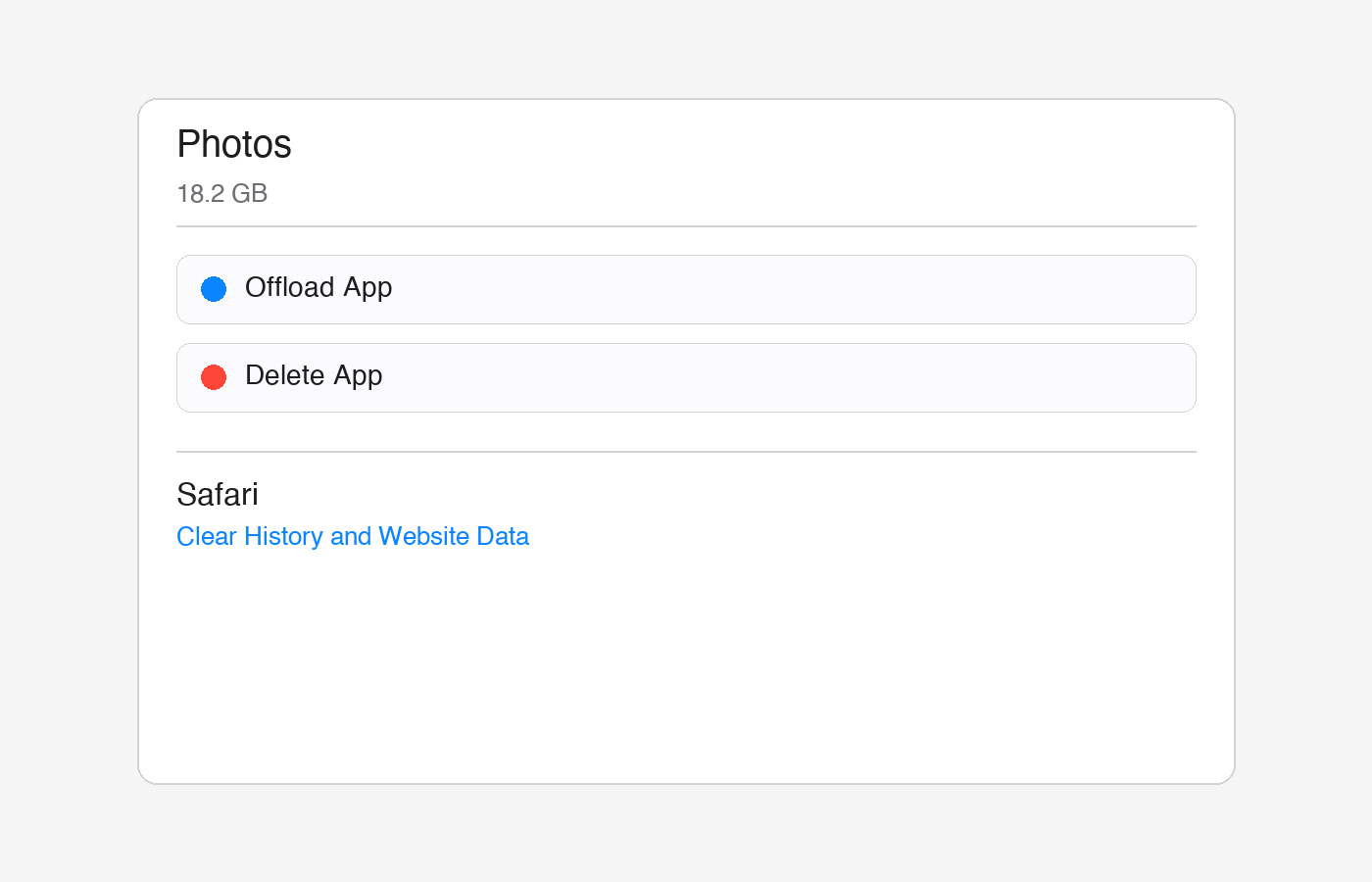
- Go to Settings > Apps > Safari, then tap Clear History and Website Data.
- Back in iPad Storage, scroll through your app list and tap any large app you rarely use.
- Tap Offload App instead of deleting it outright — this removes the app itself but keeps your documents and settings, so it reinstalls instantly later.
You can also turn on automatic offloading for the future: Settings > Apps > App Store, then enable Offload Unused Apps.
For the full official rundown of every storage option, see Apple’s manage storage on iPad guide.
Step 5: Restart and Let It Settle
After clearing the update file and cache, restart the iPad completely rather than just locking the screen. A full restart lets iPadOS clean up temporary files it was still holding onto from the update process. Check iPad Storage again about 15 minutes later — the System Data number usually drops noticeably at this point.
Tips and Troubleshooting
- Give it 24 hours if the drop isn’t immediate. Some cleanup happens gradually in the background, especially overnight while the iPad is charging.
- Turn on iCloud Photos (Settings > your name > iCloud > Photos) if you haven’t already. Keeping full-resolution originals in the cloud and lighter versions on-device is one of the biggest space savers for photo-heavy iPads.
- Check the Files app for old downloads and Recently Deleted items, which still count against your storage until they’re fully purged.
- Managed or school iPad? If your device is under an MDM profile, System Data can be harder to touch — a full erase-and-restore usually needs to go through your IT admin instead of the steps above.
Frequently Asked Questions
Why won’t deleting apps or photos reduce System Data on my iPad?
Because System Data is a separate bucket from apps and photos, made up of caches, temporary update files, and Siri data. Deleting apps frees the “Apps” portion of your storage bar, not this one.
Is it safe to delete a downloaded iPadOS update?
Yes. Deleting the downloaded file just means you’ll download it again later if you choose to update. It doesn’t affect your current software or any of your data.
How much storage should System Data normally use on iPadOS 26?
A few gigabytes is normal. If it’s climbing past 10-15GB on a 64GB or 128GB iPad, something is stuck, usually a failed update download or a bloated Safari cache.
Will restoring my iPad as new fix a stuck System Data number?
Almost always, yes, since it wipes every cache and temp file. Try the steps above first, though. A full erase and restore should be a last resort, not a first move.
Conclusion
Ballooning System Data is one of those iPadOS 26 quirks that feels alarming until you realize it’s mostly cached junk and a stuck update file. Clear those out, restart, and give it a little time. If you’re also dealing with a Bluetooth accessory dropping out on the same iPad, we covered that separately in how to fix a Bluetooth keyboard disconnecting on iPad. Has your iPad’s System Data settled down yet, or is it still holding onto space you can’t account for?