
Hello folks! You’re typing away on your laptop and suddenly the cursor just… stops. You tap the trackpad and nothing happens. Wait a few seconds, or maybe restart, and it’s back to normal — until it happens again an hour later. If this sounds familiar, you’re not imagining things, and you’re not alone. It’s one of the most annoying laptop quirks out there, and the good news is it’s almost always fixable without a trip to a repair shop.
Quick answer: A trackpad that stops working while you type is usually caused by palm rejection settings that are too aggressive, or by an accidental tap of the touchpad toggle key. Lower the “palm check” sensitivity in your touchpad driver settings, check your Fn key touchpad toggle, and update or roll back your touchpad driver if the problem started after a Windows update.
Why your trackpad keeps cutting out while you type
Most laptops use something called palm rejection (sometimes labeled PalmCheck or TouchCheck in the settings). It’s meant to stop the cursor from jumping around when the side of your hand brushes the trackpad while you type. Handy in theory. But on a lot of laptops, this setting is tuned too aggressively, so the touchpad shuts itself off completely the moment it detects typing, and takes a second or two to turn back on.
Other times the cause is simpler: a driver bug, a Windows update that reset your settings, or an accidental key combo that toggles the touchpad off entirely. Less commonly, it’s a hardware issue — I’ll cover how to tell the difference near the end.
Step 1: Check if you’re hitting the touchpad toggle key by accident
Most laptops have a dedicated key combo that turns the touchpad on and off — usually Fn + F5, Fn + F6, or Fn + F9, depending on the brand. If your palm or wrist brushes this key while you type, the touchpad can switch off mid-sentence.
- Look at your function key row for a small touchpad icon (usually a rectangle with an X or a line through it).
- Note which Fn combo it’s paired with, then try to keep your wrists clear of that spot while typing for a day and see if the problem happens less.
- On Windows 11, you can also confirm the touchpad is enabled at the system level: go to Settings > Bluetooth & devices > Touchpad and make sure the toggle at the top is switched on.
Step 2: Turn down palm rejection sensitivity
This fixes the problem for most people. The exact menu depends on your touchpad driver (Synaptics, Elan, or your laptop maker’s own software), but the idea is the same everywhere.
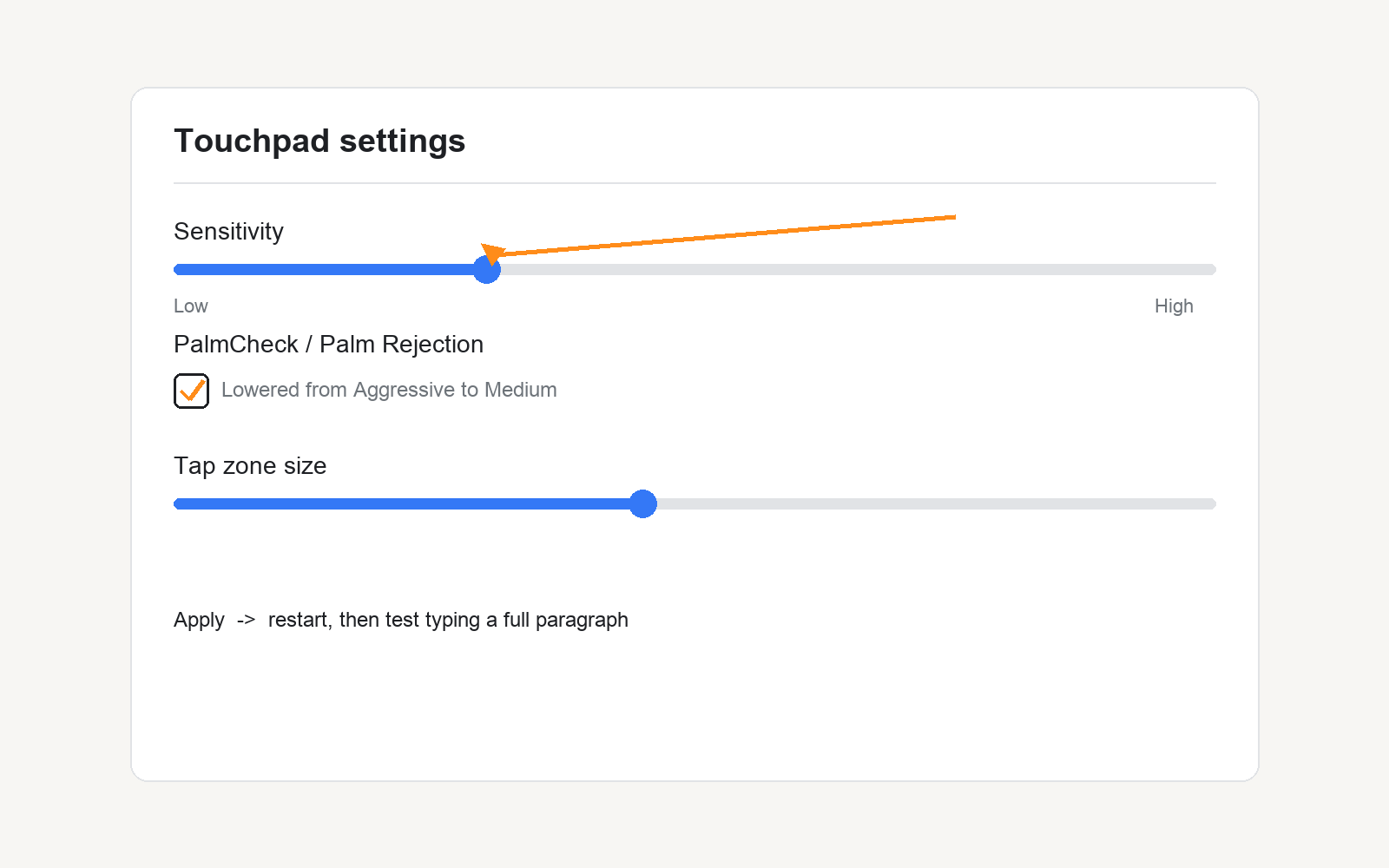
For Synaptics or Elan touchpads
- Open Settings > Bluetooth & devices > Touchpad, then scroll down and click Additional settings (or search “Mouse settings” from the Start menu, then find the touchpad tab).
- Look for a setting called PalmCheck, Palm Rejection, or Sensitivity.
- Lower the sensitivity slider a couple of notches, or uncheck the box if it’s a simple on/off toggle. Don’t turn it off completely on your first try — just dial it back.
- Apply the change, then type a full paragraph while glancing at the cursor to see if it still cuts out.
For Dell, HP, Lenovo, and Asus laptops
These brands often bundle their own touchpad utility (Dell’s “Precision Touchpad” settings, Lenovo’s “Smart Touchpad,” or similar). Check your Start menu for an app matching your laptop brand, or look under Settings > Bluetooth & devices > Touchpad > Advanced gestures for a palm detection option layered on top of the standard Windows one.
Step 3: Update or roll back your touchpad driver
If this started right after a Windows update, a driver mismatch is probably the culprit.
- Right-click the Start button and choose Device Manager.
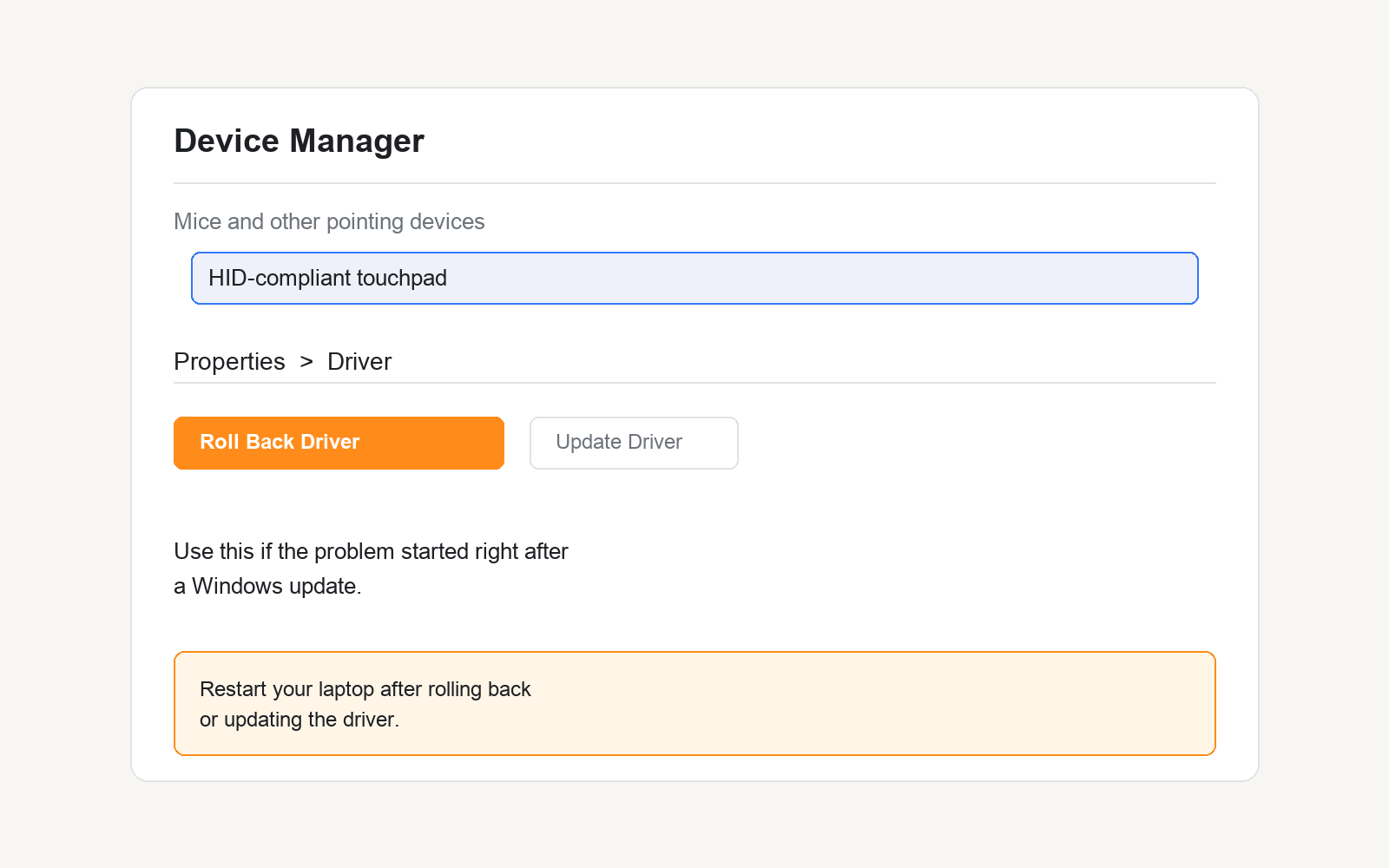
- Expand Mice and other pointing devices and find your touchpad (it might be listed as “HID-compliant mouse” or by its driver name).
- Right-click it and choose Update driver > Search automatically for drivers.
- If the problem started right after an update, instead right-click, choose Properties > Driver tab, and click Roll Back Driver if that button is available.
- Restart your laptop after either step.
Step 4: Rule out a hardware problem
If none of the above helps, it’s worth checking whether this is actually a hardware issue rather than a settings one. Plug in a USB or Bluetooth mouse and use your laptop normally for a day. If the trackpad problem never shows up when you’re just using the mouse (i.e., not resting your hands near the trackpad), that points strongly to palm rejection rather than a broken trackpad.
One thing worth knowing: on some thin laptops, a swollen battery can push up against the trackpad from underneath and cause it to misbehave or feel spongy. If your trackpad looks slightly raised or bulged at one edge, stop using the laptop and get the battery checked by a professional — don’t just keep working around it.
Tips and troubleshooting
- Try typing with your wrists raised slightly off the palm rest for a day. If the cutouts stop, palm rejection is almost certainly the cause.
- Clean the trackpad surface with a dry microfiber cloth — a sticky or slightly damp surface can confuse the touch sensor.
- If you use a screen protector-style skin or keyboard cover that overlaps the trackpad edge, remove it and test again.
- Check for a BIOS update from your laptop manufacturer’s support site — trackpad firmware bugs do get patched this way sometimes.
Frequently asked questions
Why does my trackpad only stop working when I’m typing fast?
Fast typing means more vibration and more chance your palm brushes the pad’s edge, which triggers palm rejection more often. Lowering the sensitivity in Step 2 usually solves this specifically.
Is this a hardware problem or a software problem?
It’s almost always software — specifically, overly aggressive palm rejection. Hardware issues (a failing trackpad or a swollen battery) are far less common and usually come with other symptoms like a spongy feel or a visibly raised edge.
Will disabling palm rejection completely cause other problems?
Yes, it can — you’ll get more accidental cursor jumps while typing. That’s why Step 2 recommends lowering sensitivity gradually rather than switching it off entirely.
Does this happen on MacBooks too?
It’s rarer on MacBooks since Apple’s trackpad and palm rejection are tightly integrated in hardware, but it can still happen after a macOS update. If you’re on a Mac, check System Settings > Trackpad for any recently changed gesture settings first.
For more detail on Windows touchpad settings, Microsoft’s own touchpad settings guide covers additional gesture options.
If your touchpad started acting up after a sleep or wake cycle instead of while typing, our guide on fixing a laptop touchpad that stops working after sleep covers that specific case.
Did one of these steps fix your trackpad, or is it still cutting out on you? Let me know in the comments what laptop you’re running — it helps other readers with the same model.