
Hello folks! If your Mac has felt like it’s wading through mud ever since you updated to macOS Tahoe, you’re not imagining it. A lot of that slowdown traces back to one culprit: Spotlight. The system is re-scanning and re-indexing your entire drive in the background, and on top of that, two “helpful” settings are quietly burning CPU and memory the whole time. I ran into this myself on a MacBook Air a few weeks after updating, and once I found the actual switch to flip, the difference was immediate.
Quick answer: Go to System Settings > Siri & Spotlight and turn off “Show Related Content” and “Help Apple Improve Search.” If your Mac is still crawling after that, rebuild the Spotlight index from System Settings > Siri & Spotlight > Spotlight Privacy by adding your drive and then removing it again. Give it a few hours to reindex before judging the results.
Why macOS Tahoe Makes Spotlight So Heavy
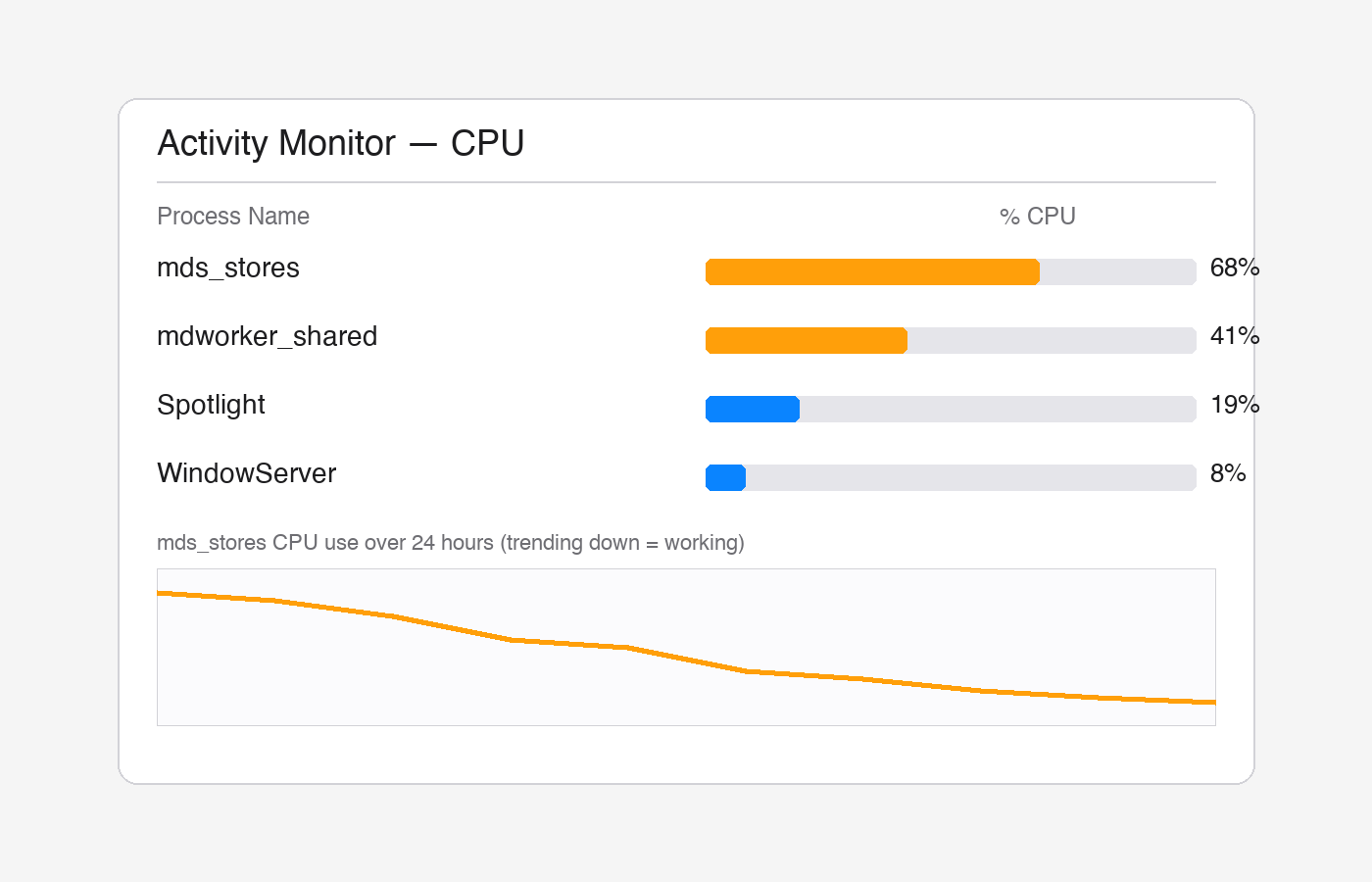
Every time Apple ships a big macOS update, Spotlight rebuilds parts of its search index from scratch. That’s normal. What’s different with Tahoe is that it also layers in extra “related content” lookups and search-improvement telemetry that run constantly, not just right after the update. On an older Mac, or one with a full-ish drive, that combination can pin a background process called mds_stores or mdworker at the top of Activity Monitor for hours.
The good news is you don’t need to nuke your whole system to fix it. Most of the time this comes down to three things: two settings that are on by default, a stuck index, and simple patience while the one-time reindex finishes.
Step 1: Turn Off Show Related Content and Search Improvement
This is the fix that worked for me, and it’s the first thing worth trying because it takes 30 seconds.
- Open System Settings.
- Click Siri & Spotlight in the sidebar.
- Scroll down and switch off Show Related Content.
- In the same section, switch off Help Apple Improve Search.
Those two toggles control extra background lookups that Spotlight runs every time it indexes new files or you type a search. Turning them off doesn’t break search — you’ll still get normal results, just without the extra overhead.
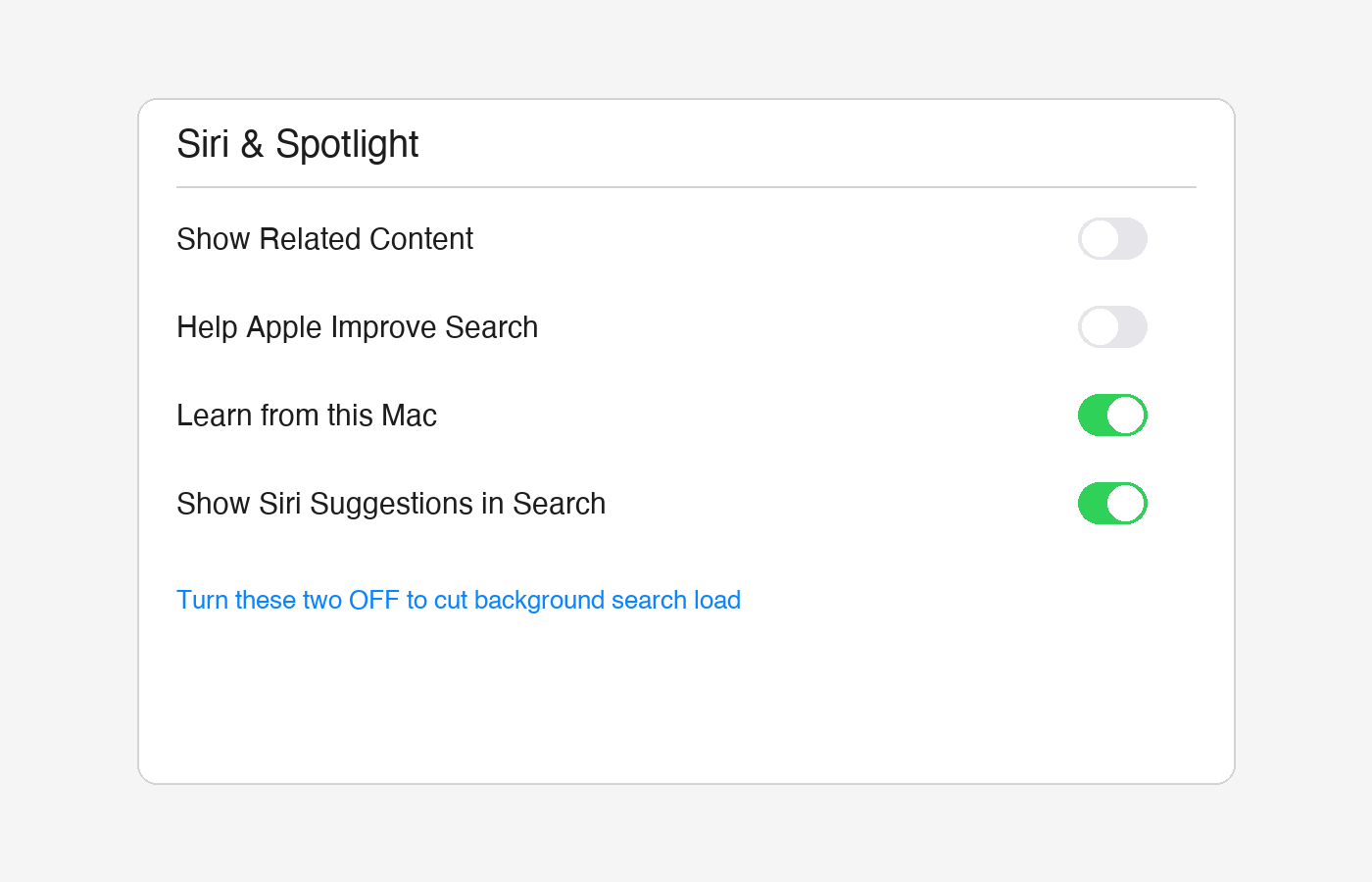
For the official rundown of every option in this panel, Apple’s own Spotlight settings guide is worth a skim too.
Step 2: Let the Initial Reindex Finish
If you updated to Tahoe in the last day or two, some of the slowness is just a one-time tax. Spotlight, Photos, and iCloud all reindex after a major update, and they compete for the same disk and CPU resources.
- Leave your Mac plugged in and awake overnight if you can.
- Open Activity Monitor (search for it with Spotlight, ironically) and check the CPU tab for
mds_stores. If it’s using a lot of CPU but slowly trending down over time, it’s working, not broken. - Avoid force-quitting it repeatedly — that just restarts the indexing process from further back.
Step 3: Rebuild the Spotlight Index Manually
If it’s been more than 48 hours and things are still sluggish, the index itself might be corrupted rather than just busy. You can force a clean rebuild without Terminal:
- Go to System Settings > Siri & Spotlight.
- Click Spotlight Privacy near the bottom.
- Click the + button and add your Macintosh HD as an excluded location.
- Wait about 10 seconds, then select it again and click the − button to remove it.
This tricks Spotlight into treating the whole drive as new again, so it rebuilds the index cleanly. It’s slower than the toggle fix but more thorough — expect the reindex to take a few hours depending on how much you’ve got stored.
Step 4: Reduce Visual Load From Liquid Glass
Tahoe’s new “Liquid Glass” interface leans harder on your GPU than older macOS versions did, and on Macs with integrated graphics that can make everything, including Spotlight’s own search window, feel laggy.
- Go to System Settings > Accessibility > Display.
- Turn on Reduce Transparency.
- While you’re there, go to Accessibility > Motion and turn on Reduce Motion too.
This won’t touch Spotlight’s indexing directly, but it does make the search window itself snappier to open and type into, which is honestly most of what people mean when they say “Spotlight is slow.”
Tips and Troubleshooting
- Check free disk space first. Spotlight needs headroom to build its index. If your drive is under 10-15% free, clear some space before trying anything else.
- Third-party antivirus or backup tools that scan files in real time can fight with Spotlight over the same files. If you’ve got one installed, check whether it has an “exclude system files” option.
- Still stuck after a full reindex? Try a safe boot (hold Shift at startup) once, then restart normally. This clears some cached system files that can interfere with indexing.
- If Spotlight search results themselves seem wrong or missing files rather than just slow, that’s a related but separate problem — worth checking your Spotlight Privacy exclusion list to make sure you haven’t accidentally excluded a folder.
Frequently Asked Questions
Does turning off Show Related Content break Spotlight search?
No. It only disables extra suggestions and lookups layered on top of basic search. You’ll still find your files, apps, and settings normally — searches often feel faster afterward.
How long should Spotlight reindexing take after updating to macOS Tahoe?
It depends on how much data you have, but most Macs finish within a few hours to a day. A drive with hundreds of thousands of files, like a photographer’s or developer’s Mac, can take longer.
Is it safe to force-quit mds_stores in Activity Monitor?
It won’t damage anything, but it usually just restarts the indexing process, so you lose progress rather than gain speed. It’s better to let it run.
Will resetting Spotlight delete any of my files?
No. Rebuilding the index only affects the search database Spotlight keeps in the background. Your actual files, folders, and apps aren’t touched.
Conclusion
A slow Mac right after a big macOS update is almost always temporary, but if it’s dragging on weeks later, those two Spotlight toggles are worth checking before you blame your hardware. If Spotlight is also missing files instead of just running slow, we covered that separately in how to fix Spotlight not finding files on Mac. Has your Mac settled down since updating to Tahoe, or is Spotlight still fighting you?