
Hello folks! You’re standing right next to a friend, phone in hand, trying to send them a photo with Quick Share, and… nothing. Their device never shows up in the list. Or it shows up, you tap send, and the transfer just sits there spinning until it times out. It’s supposed to be the fast, no-cable way to move files between Android phones, but when it breaks, it breaks in a way that makes you want to just email the file to yourself instead.
1. Turn on Bluetooth and Wi-Fi on both devices
Quick Share needs Bluetooth to find nearby devices and Wi-Fi Direct to actually move the file, so both need to be switched on, not just one. Swipe down to Quick Settings and check both toggles on the sending phone and the receiving phone. It sounds obvious, but I’ve lost count of how many times my Bluetooth had quietly turned itself off after a restart.
2. Fix your visibility settings
This is the one people miss most. Quick Share has a setting for who can see your device, and if it’s set too narrowly, your friend’s phone simply won’t appear as an option, or you won’t appear on theirs.
- Open Settings and search for Quick Share, or find it in Quick Settings and long-press the tile.
- Tap Who can share with you.
- Choose Everyone (some phones show this as “Everyone for 10 minutes”) for the transfer, then switch back to Contacts only afterward if you prefer.
If you and your friend are both signed into Google accounts that are already in each other’s contacts, the Your devices or Contacts setting should work too. But when you’re not sure, Everyone is the setting that just works.
3. Get the phones closer together
Quick Share’s Bluetooth discovery has a short range, and it gets worse through pockets, cases, or a bag. Keep both phones within about a foot of each other, screens unlocked, until the transfer starts. Once it begins, you can usually relax that distance a little.
4. Clear the Quick Share cache
Like most Android apps, Quick Share can build up a corrupted cache that makes it crash or freeze mid-transfer.
- Go to Settings > Apps.
- Search for Quick Share (on some phones it’s listed under Nearby Share).
- Tap Storage, then Clear cache.
Don’t tap Clear data unless the cache clear alone doesn’t help. Clearing data resets your Quick Share preferences, so you’ll need to redo your visibility settings afterward.
5. Turn off battery optimization for Quick Share
Aggressive battery-saving can stop Quick Share from running in the background, which shows up as transfers that start but never finish. Go to Settings > Apps > Quick Share > Battery, and set it to Unrestricted or turn off Battery Saver temporarily while you send the file.
6. Check for a pending software update
Quick Share bugs get patched more often than you’d expect. Samsung, for example, confirmed a fix for a run of Quick Share failures affecting some Galaxy phones on One UI 8.5, rolled into the May 2026 security patch. Check Settings > System > System update (or Settings > Software update on Samsung phones) and install anything waiting there before you try anything more drastic.
7. Restart both phones
When none of the settings tweaks help, a restart of both devices clears out whatever background process is stuck. Do this after you’ve already checked Bluetooth, visibility, and the cache, since restarting shouldn’t be your first move if a quick settings fix will do.
Tips and troubleshooting
- Same Google Account, different result. If you’re sending to your own second device, make sure both are signed into the same Google Account. It’s set to always show up under “Your devices” without needing Contacts visibility.
- Large files time out more. If a big video keeps failing partway through, try sending a small test file first to confirm the connection itself works before blaming the file.
- Work profile can interfere. On phones with a separate work profile, Quick Share sometimes only sees devices tied to the matching profile. Try toggling the work profile off temporarily if a personal device won’t show up.
- iPhones aren’t included. Quick Share is a Google and Samsung feature for Android devices; sharing with an iPhone still means AirDrop won’t help you and you’ll need another method, like a messaging app or cloud link.
- Still nothing? Uninstall updates for Quick Share (or Nearby Share) from the Play Store app info page, restart, then let it update again fresh. This has fixed stubborn cases for me when a cache clear alone didn’t.
Google covers the basics of sending and receiving in its official Quick Share help page, which is worth a skim if you’ve never changed the visibility settings before. And if the digital wellbeing timer on your phone has been acting up too, our post on fixing the Digital Wellbeing timer that won’t reset covers a similar app-cache reset process.
Frequently asked questions
Why can’t my phone find my friend’s phone on Quick Share?
The most common cause is a visibility setting that’s too restrictive. Set “Who can share with you” to Everyone, make sure Bluetooth is on for both phones, and keep them close together while they search for each other.
Does Quick Share need an internet connection?
No. Quick Share uses Bluetooth to discover devices and Wi-Fi Direct to transfer files, both of which work without an internet connection. You do need Bluetooth and Wi-Fi turned on, just not connected to a network.
Can I use Quick Share to send files to an iPhone?
Not directly. Quick Share only works between Android devices (and some Windows PCs with the Quick Share app installed). For iPhones, you’ll need a messaging app, email, or a cloud storage link instead.
Will clearing the Quick Share cache delete my files?
No. Clearing the cache only removes temporary data the app uses to run, not any files you’ve already sent or received. Those stay in your Downloads or Quick Share folder untouched.
Quick Share is one of those features you only think about the moment it stops working, right when you actually need it. Did one of these fixes get your transfer moving, or is your setup still refusing to cooperate?
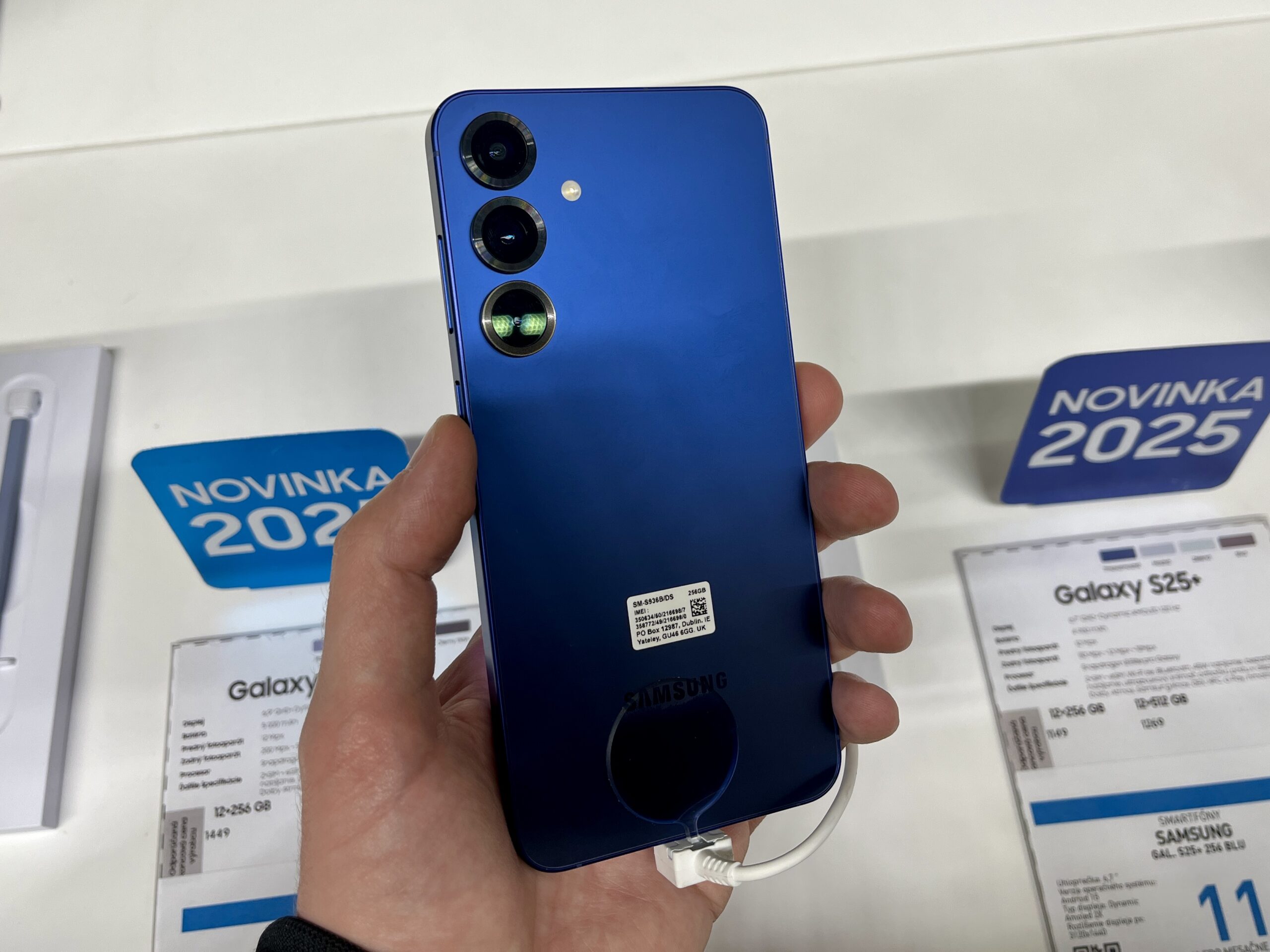
Photo credits: Samsung Galaxy S25 photos by Jakub CA and Alvis Jean, Google Pixel 9 Pro XL photo by D.328, all licensed CC BY-SA 4.0 via Wikimedia Commons.