
Hello folks! You updated to iPadOS 26, went to open two apps side by side like you always do, and… nothing. No Split View. Maybe you can drag an app to the edge and it just snaps back, or the whole multitasking menu looks different and you can’t find the option at all. A lot of readers have hit this exact wall this week, so let’s sort it out.
Quick answer: iPadOS 26 changed how multitasking works, and Split View is often missing because your iPad is set to “Full Screen Apps only” mode, or because Stage Manager is turned on and overriding the classic split-screen gesture. Switch to Windowed Apps mode in Settings, or turn Stage Manager off, and the familiar drag-to-split gesture comes back.
Why Split View disappeared after the iPadOS 26 update
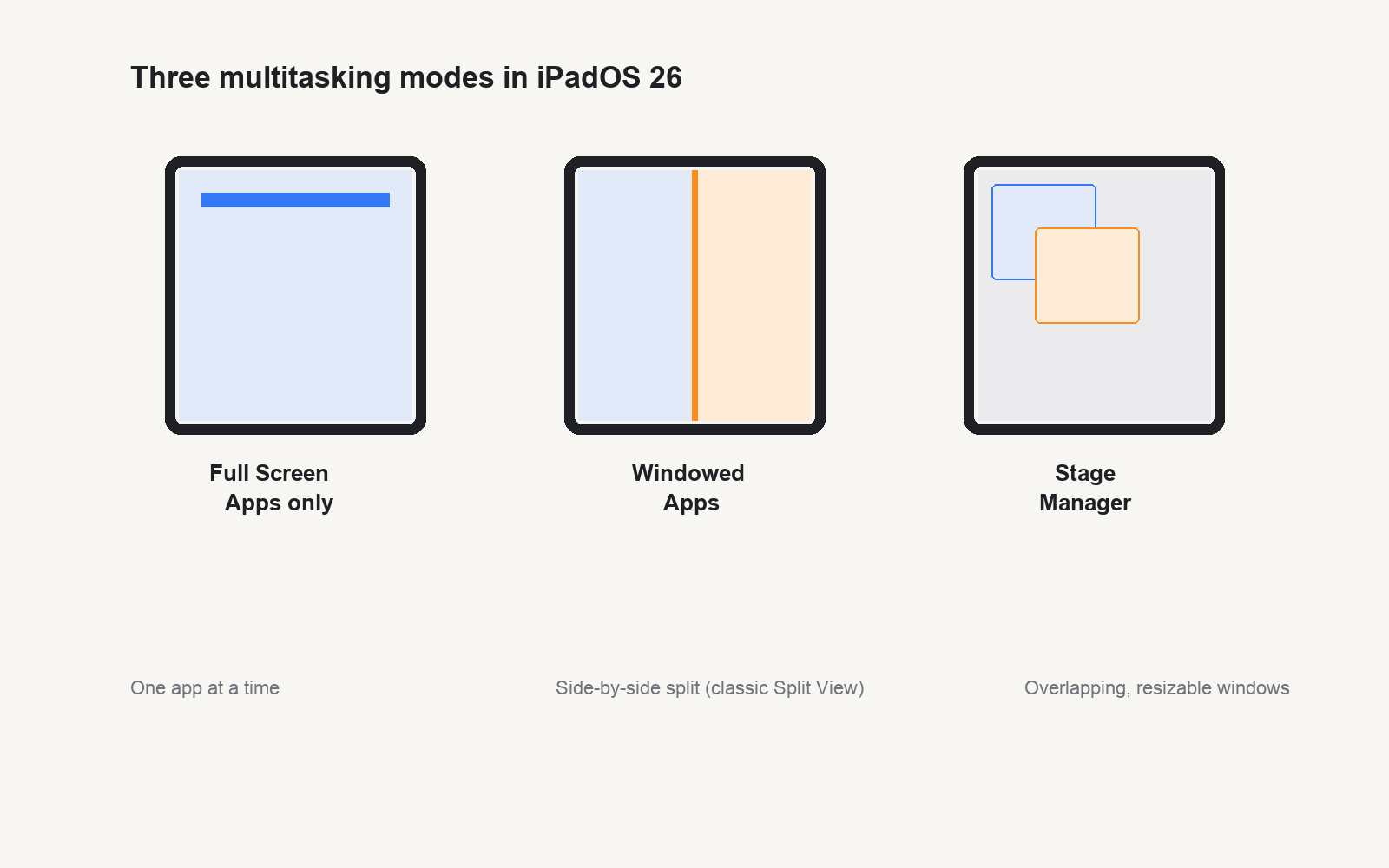
Apple reworked multitasking pretty heavily in iPadOS 26. Instead of one fixed way of splitting your screen, your iPad now has three separate modes, and each one behaves differently:
- Full Screen Apps only — one app at a time, no split screen at all.
- Windowed Apps — the closest thing to the old Split View, where you can drag apps side by side or resize them freely.
- Stage Manager — the Mac-style overlapping windows mode, which uses a completely different gesture set.
If your iPad quietly switched to Full Screen Apps only during the update, or if Stage Manager got turned on without you meaning to, the classic drag-an-app-to-the-edge trick simply won’t do anything. It’s not broken. It’s just in a different mode than you expect.
Step 1: Check your multitasking mode
- Open the Settings app.
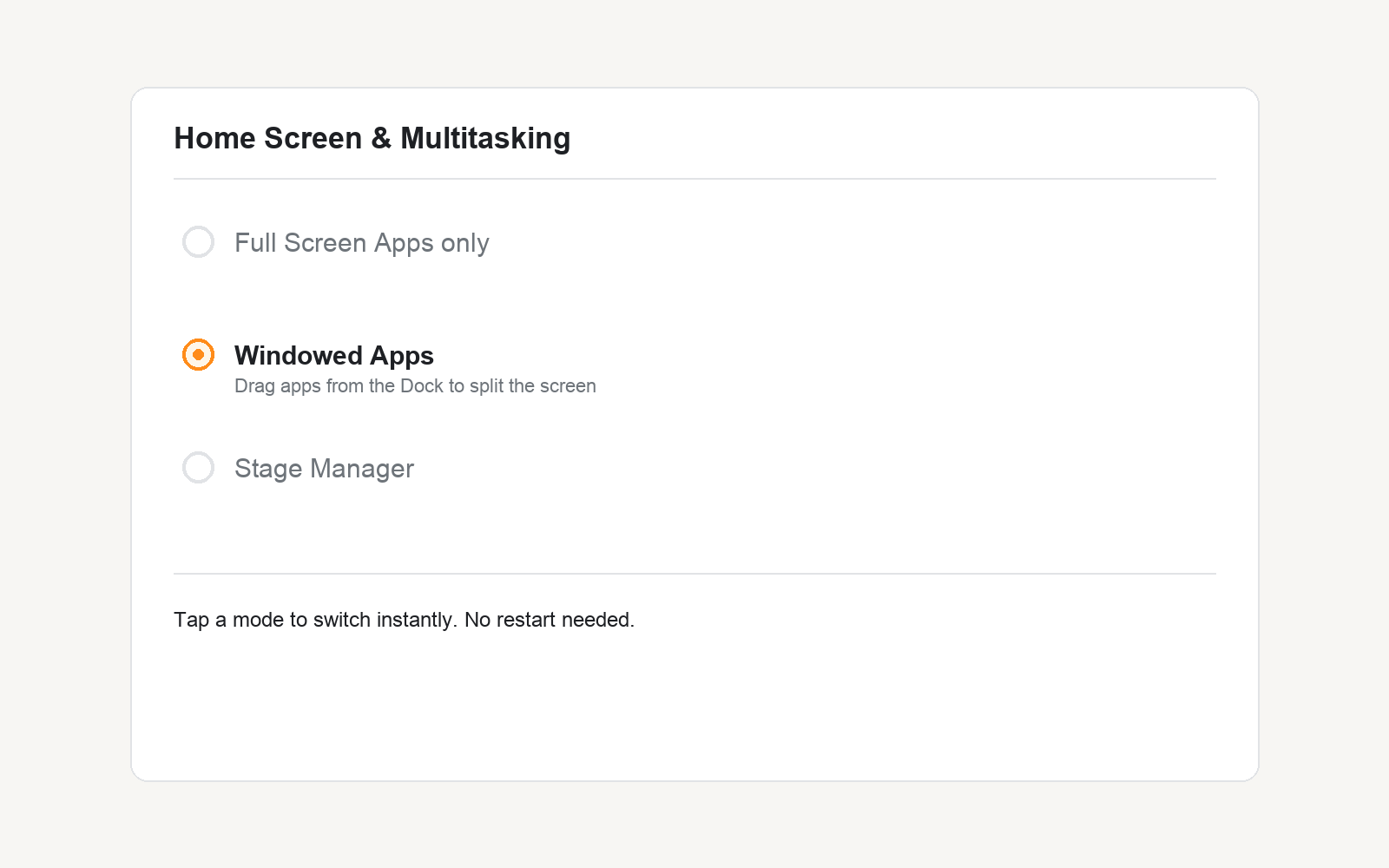
- Tap Home Screen & Multitasking (on some models this is listed as Multitasking & Gestures).
- Look for the section showing your current mode: Full Screen Apps only, Windowed Apps, or Stage Manager.
- If it’s set to Full Screen Apps only, tap Windowed Apps instead.
This one setting fixes the problem for most people. It’s easy to miss because the update can quietly change it, especially if you installed the update mid-task and it defaulted to something new.
Step 2: Learn the new split-screen gesture
Even in Windowed Apps mode, the gesture is a little different from older iPadOS versions. Here’s how it works now:
- Open the first app you want to use.
- Swipe up slightly from the bottom edge to reveal the Dock, but don’t let go yet.
- Drag a second app icon from the Dock toward the left or right edge of the screen.
- Keep dragging until you see the screen split into two panes, then release.
- Drag the thin divider in the middle to resize the two windows however you like.
I tried this on an 11-inch iPad Air after updating and honestly the new drag zone is a bit more forgiving than the old one — you don’t have to hit the exact edge pixel, just get close.
Step 3: Turn off Stage Manager if it’s getting in the way
Stage Manager and Windowed Apps don’t play together the way you’d expect — Stage Manager replaces the classic split-screen gesture with its own overlapping-window system. If you turned it on at some point (or an update flipped it on for you), it can feel like Split View “vanished” when really you’re just in a different mode.
- Go to Settings > Home Screen & Multitasking.
- Find the Stage Manager toggle and switch it off.
- Your iPad should return to the standard Windowed Apps behavior described in Step 2.
If you actually like Stage Manager’s overlapping windows once you get used to it, you can leave it on — just know the gesture for arranging apps is different: you drag windows by their top bar and resize with the corner handle, rather than dragging from the Dock to an edge.
Step 4: Update to the latest iPadOS 26 point release
Apple has pushed a few small multitasking fixes since iPadOS 26 first launched. If your Split View still feels glitchy, laggy, or the divider won’t drag smoothly after trying the steps above, check for a newer version.
- Open Settings > General > Software Update.
- Install any update that’s listed.
- Restart your iPad once the update finishes, then try Split View again.
Tips and troubleshooting
- Not every app supports Split View. A handful of apps are still coded for full-screen only, so if one specific app won’t split while others do, that’s the app, not your settings.
- If the divider between two split apps won’t move, try lifting your finger and starting the drag again from directly on the thin gray bar rather than near it.
- Restarting the iPad (hold the top button and either volume button, then slide to power off) clears out a surprising number of multitasking glitches after an update.
- If you use an external keyboard, some Split View shortcuts changed too — check Settings > General > Keyboard > Keyboard Shortcuts for the current key combos.
Frequently asked questions
Why can’t I drag an app to split the screen anymore?
Your iPad is most likely set to Full Screen Apps only mode. Switch to Windowed Apps under Settings > Home Screen & Multitasking to bring the gesture back.
Is Split View gone for good in iPadOS 26?
No. Apple didn’t remove split-screen multitasking, it just reorganized it into three selectable modes. Windowed Apps mode gives you the same basic split-screen behavior as before.
What’s the difference between Windowed Apps and Stage Manager?
Windowed Apps is the simple side-by-side split, closest to the old Split View. Stage Manager lets you overlap and resize multiple windows freely, more like a laptop, but it uses different gestures entirely.
Does every iPad support all three multitasking modes?
Stage Manager needs an iPad with an M-series chip or an A-series chip from recent models. Older supported iPads only get Full Screen Apps only and Windowed Apps, which is normal and not a bug.
Apple’s own iPad multitasking guide walks through the current gestures in more detail if you want the full picture.
If your iPad also has Stage Manager acting up on its own, our guide on fixing Stage Manager not working in iPadOS 26 covers that separately.
Did switching to Windowed Apps bring your Split View back, or are you still stuck? Tell me which iPad model you’re on in the comments — it helps me figure out if this is model-specific.