
Hello folks! You just unboxed a shiny new Android tablet, opened your favorite app, and… it looks like someone stretched a phone screenshot to fit a movie poster. Buttons are huge, text is blurry, and everything just looks off. You didn’t do anything wrong. Most Android apps are still built for phones first, and tablets get the leftover scaling.
Quick answer: Stretched or blurry apps on an Android tablet happen because the app wasn’t designed for a bigger screen, so Android stretches the phone layout to fill the space. Fix it by changing the app’s aspect ratio setting (Settings > Display > Full screen apps on Samsung, or Settings > Apps > Aspect ratio on Pixel and stock Android), updating the app, and checking your display’s screen zoom level. If the app still looks bad, it likely just doesn’t have a tablet layout yet, and the browser version is your best workaround.
Why this happens on tablets and not phones
Phone apps are built around a specific screen size. When you open one on a tablet, Android has two choices: show it small in the middle of the screen, or stretch it to fill the space. Most manufacturers default to stretching, since a tiny app floating in a sea of blank space looks worse to most people. The problem is that stretching a phone-sized interface blows up buttons, text, and icons past their intended size, which is what makes everything look blurry and off.
This got a lot more common as budget Android tablets flooded the market. Plenty of popular apps, especially ones from smaller developers, still haven’t built a proper tablet layout.
1. Change the app’s aspect ratio setting
This is the fix that works for the most apps, and it only takes a minute per app.
On Samsung tablets:
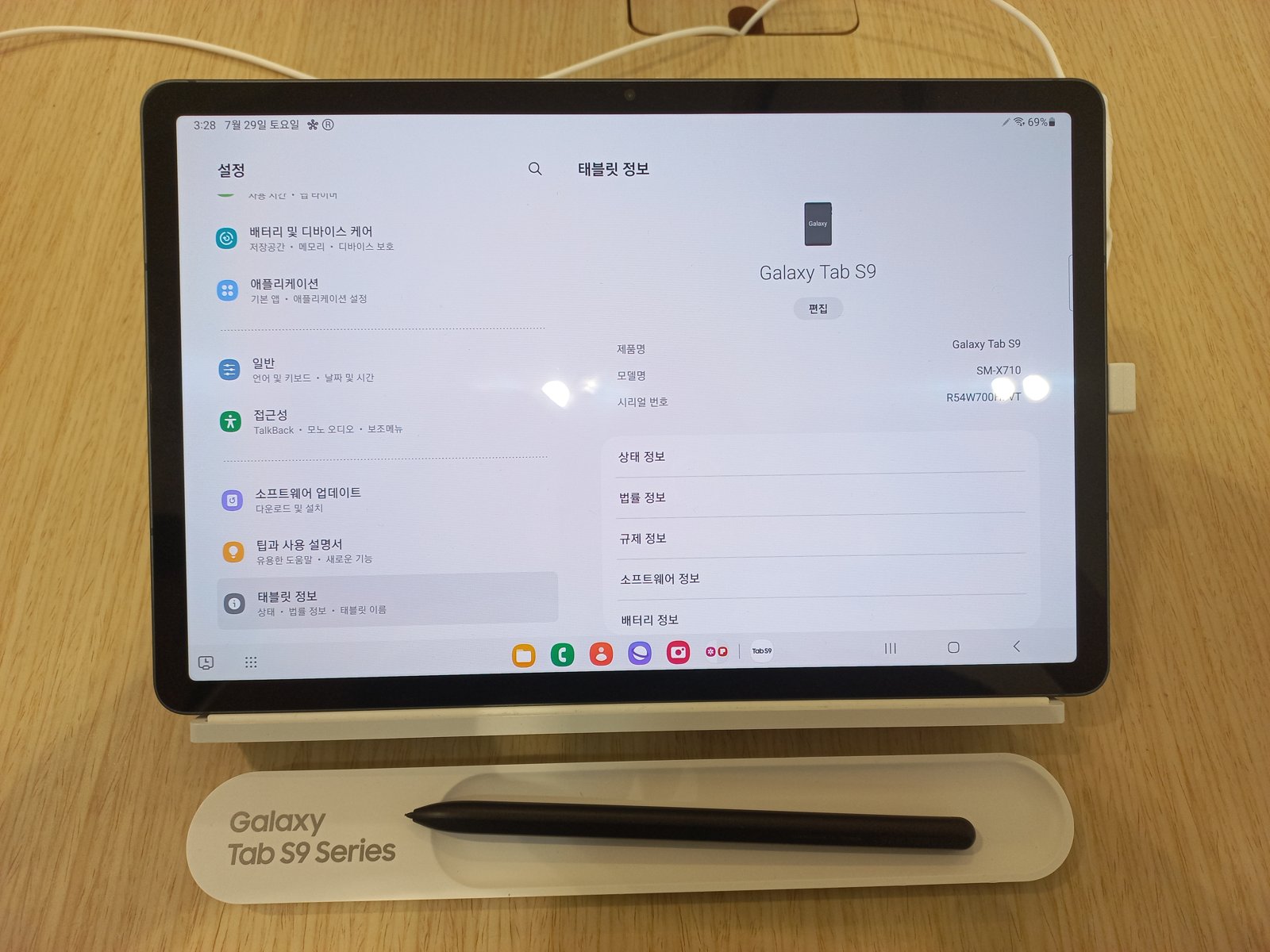
- Open Settings > Display > Full screen apps.
- Tap the Aspect ratio tab if you see one.
- Find the app that looks wrong and tap it.
- Choose Full screen or App default and see which looks better. Some apps actually look sharper at a smaller ratio than fully stretched.
Note: on One UI 7 and newer, Samsung moved this setting for some apps into Settings > Advanced features > Labs or into each game’s individual settings under Game Booster. If you can’t find Full screen apps, check there.
On Pixel tablets and stock Android 14+:
- Open Settings > Apps.
- Tap Aspect ratio (or open the specific app, then look for Aspect ratio in its app info page).
- Pick from Full screen, Half screen, or 4:3, depending on what that app supports.
2. Check your screen zoom and display size
If everything on your tablet looks slightly too big or slightly blurry, not just one app, the culprit might be your display scaling, not the app.
- Go to Settings > Display.
- Look for Screen zoom or Display size (naming varies by manufacturer).
- Try moving the slider one notch toward “Standard” if it’s set to a larger zoom level.
- Restart the tablet after changing it. Some apps need a fresh launch to pick up the new scaling.
3. Update the app
Developers roll out tablet-optimized layouts over time, and an outdated app is often the whole problem.
- Open the Google Play Store.
- Tap your profile icon, then Manage apps & device.
- Update the specific app, or tap Update all if there’s a longer list.
- Reopen the app and check if the layout improved.
4. When the app just doesn’t support tablets yet
Some apps, honestly, may never get a proper tablet layout. If you’ve tried the aspect ratio settings and it still looks stretched:
- Try the app’s website in Chrome instead. Most web versions scale properly to any screen size, and you can even add a shortcut to your home screen that opens like an app.
- Check if the developer has a separate tablet or “HD” version listed on the Play Store. Some do, under a slightly different name.
- Leave a review mentioning the tablet scaling issue. Developer teams do read these, and enough requests can bump a tablet layout up the priority list.
Tips and troubleshooting
- Clear the app’s cache (Settings > Apps > [app name] > Storage > Clear cache) before you assume it’s a lost cause. A corrupted cache can cause weird scaling glitches that have nothing to do with tablet support.
- If only images inside an app look blurry, not the buttons or text, that’s usually the app compressing images for phone screens rather than an aspect ratio issue.
- Split-screen multitasking can make scaling worse. Try the app in full screen, by itself, before troubleshooting further.
- Developer options has a “Force activities to be resizable” toggle. It sounds promising but honestly causes more crashes than it fixes for most people. Leave it off unless you know exactly what you’re doing.
Frequently asked questions
Why do some apps look stretched or blurry on my Android tablet?
Most apps are designed for phone screens first. When Android stretches that phone-sized layout to fill a bigger tablet screen, buttons, icons, and text get blown up past their intended resolution, which makes them look blurry or oversized.
Can I force any app to go full screen on Android?
You can try, using the aspect ratio setting in Display or Apps settings, but not every app supports it. Apps with a rigid phone-only layout may just resize the window without actually improving how sharp things look.
Does changing screen resolution fix blurry apps?
Sometimes. Lowering your screen zoom level can help apps that scale poorly, but it also shrinks everything else on your tablet, including your home screen icons. It’s worth testing, but it’s not a guaranteed fix for every app.
Will Android ever fix tablet app scaling for all apps?
Google has pushed developers harder on this with recent Android versions, and newer flagship tablets handle it better than budget models. But since it depends on each app developer building a tablet layout, some apps will likely stay stretched until their developers prioritize it.
Wrapping up
A stretched, blurry app is annoying but rarely a sign anything is actually wrong with your tablet. Nine times out of ten it’s the aspect ratio setting, and that’s a two-minute fix once you know where Samsung or Google buried it. Which app is giving you the most trouble on your tablet right now?
For more display troubleshooting, check our guide to fixing external monitor issues on macOS. For official per-app display settings, see Google’s Android display support page.
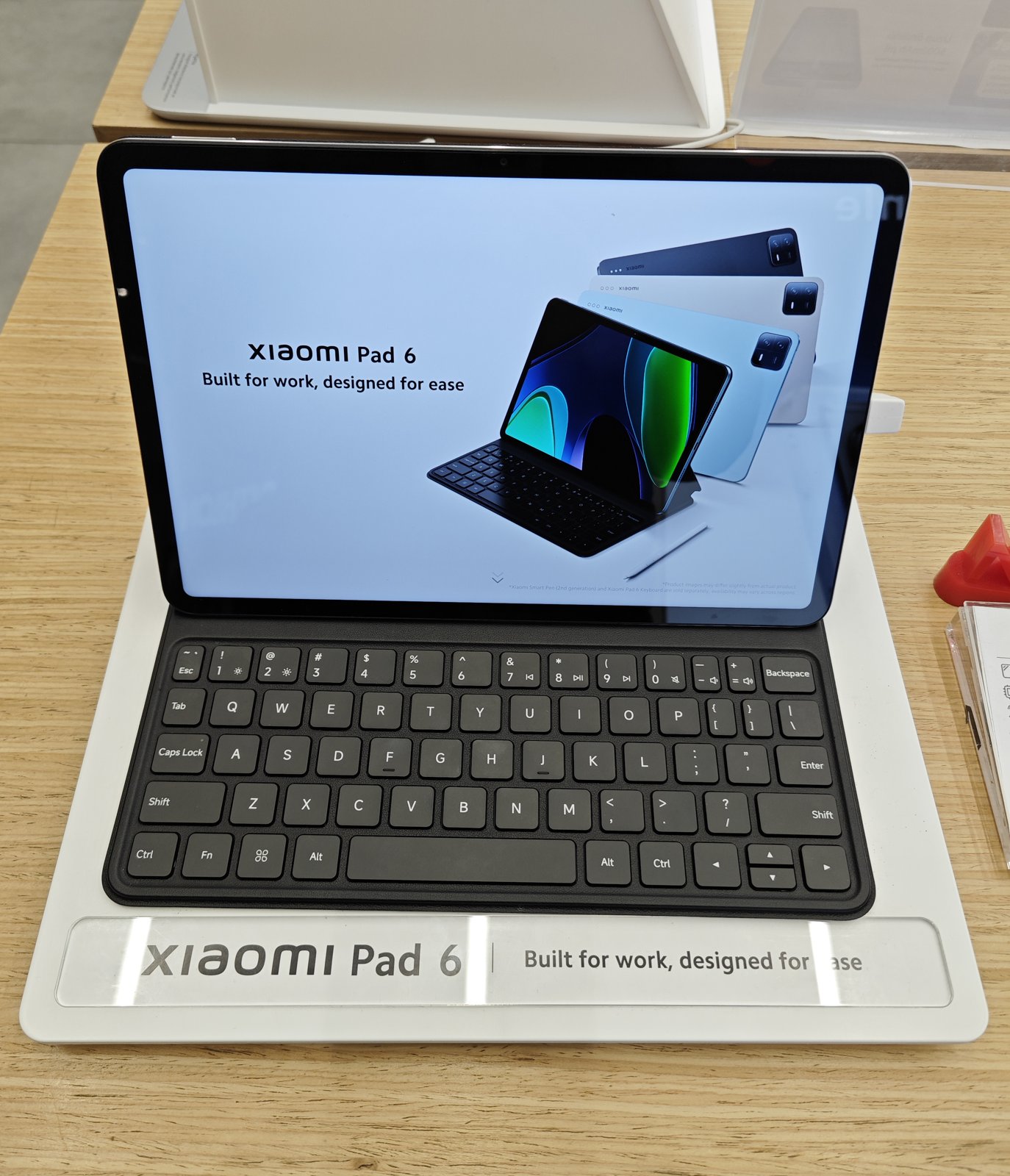
Photos: Striker9498, CC BY-SA 3.0 (Galaxy Tab S9); Myrat, CC0 (Xiaomi Pad 6).